> For the complete documentation index, see [llms.txt](https://docs.airops.com/llms.txt). Markdown versions of documentation pages are available by appending `.md` to page URLs; this page is available as [Markdown](https://docs.airops.com/actions/workflow-concepts/workflow-steps/memory-steps/memory-search.md).
# Search Knowledge Base
Semantically search a Knowledge Base
## What is a Knowledge Base Search Step?
The Knowledge Base Search step allows you to semantically search your data in order to power customized content or recommendations to users.
For more information on setting up a Knowledge Base, see our documentation page [here](/context/memory-stores.md).
## How to Configure a Knowledge Base Search Step
### Select a Knowledge Base
Select the name of your Knowledge Base from the dropdown.
{% hint style="info" %}
**Dynamic Knowledge Base Selection:** You can use Liquid variables to dynamically select which Knowledge Base to search at runtime. This is useful when you have multiple Knowledge Bases and want to choose between them based on workflow inputs or previous step outputs. For example: `{{input.knowledge_base_name}}`
{% endhint %}
### Max Results
Choose the number of Knowledge Base results to return.
{% hint style="info" %}
Your content is chunked into 1000 tokens, so each result will be \~1000 tokens.
{% endhint %}
If you're finding that your LLM isn't returning the exact results you're looking for, then we recommend increasing the number of results and asking it to synthesize them.
### Filter the Knowledge Base (Optional)
Knowledge Bases have two different filter modes. Use filters to narrow your search based on metadata, including custom metadata tags you've added to your Knowledge Base files.
#### Visual Editor
The **Visual Editor** lets you filter data based on any metadata field, including:
* **Custom metadata** you've added (e.g., country, product, audience, content type)
* **Standard metadata** inherited from the source
* **CSV/Sheet columns** when searching structured data
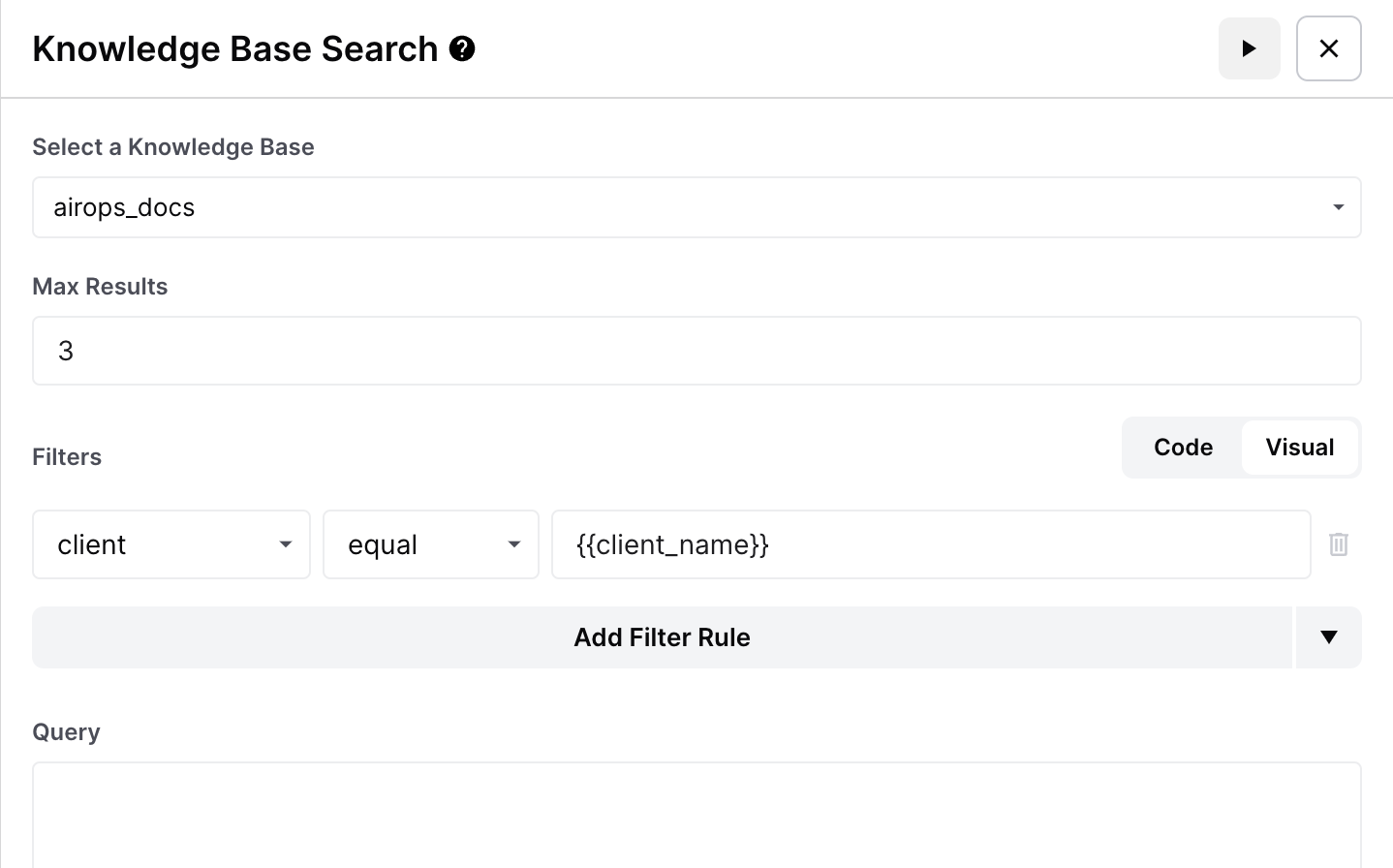
For example, if you have case studies tagged with a `country` custom metadata field, you can filter to search only within case studies for a specific region:
Filter on a value via the Visual Editor
{% hint style="success" %}
**Dynamic Filtering with Inputs**
Make your filters dynamic by using workflow inputs. For example, create an input called `region` and set your filter to: country equals `{{input.region}}`. Now when you run the workflow with different region values, you'll search only the relevant Knowledge Base files.
{% endhint %}
#### Code Editor
For more complex use cases, you can use the **Code Editor** which uses MongoDB's query and projection operators. Here are some common operators:
* **$eq** - Equal to (for numbers, strings, booleans)
* **$ne** - Not equal to (for numbers, strings, booleans)
* **$gt** - Greater than (for numbers)
* **$gte** - Greater than or equal to (for numbers)
* **$lt** - Less than (for numbers)
* **$lte** - Less than or equal to (for numbers)
* **$in** - In array (for strings or numbers)
* **$nin** - Not in array (for strings or numbers)
Let's walk through a quick example of how you can filter on Metadata in your Workflow using our "Q\&A" Template. In this specific example, we have already populated our Knowledge Base to include multiple countries' Constitutions, as well as Metadata focused around the "country" field to filter on.
{% @arcade/embed url="" flowId="wdZVVd8LeM0QNGiSf9v9" %}
In order for filtering to be effective, we recommend reading through our ["Knowledge Bases Metadata" document](/context/memory-stores/memory-stores-metadata.md) to ensure you're providing optimal metadata fields to filter on.
### Query
The phrase used to search your knowledge base for semantically similar text.
As best practice, we recommend that you utilize a liquid variable for your query. Because your workflows are meant to adapt to the inputs you provide, it typically isn't best to hard-code your query to a specific variable or question.
Because the Knowledge Base will return the most *semantically* similar results, there will be times where providing a long string of text will be more likely to return your desired results than a targeted, accurate phrase. We encourage you to test your query prompt to ensure it best fits your needs.
## Liquid Variables in Knowledge Base Steps
Liquid variables work across ALL Knowledge Base steps, including:
* **Search Knowledge Base:** Use Liquid for queries, filters, and Knowledge Base selection
* **Write to Knowledge Base:** Use Liquid for content and metadata values
* **Get Knowledge Base File:** Use Liquid for file identifiers
* **Read from Knowledge Base:** Use Liquid for record selection
This enables fully dynamic workflows where Knowledge Base operations adapt based on inputs or previous step outputs.
## Knowledge Base Search Step Output
The Knowledge Base Search step will output a list of embeddings from the knowledge base.
* **ID:** A unique ID based on the metadata Chunk ID, Record ID, and Vector Store Document ID.
* **Score:** A [measure of semantic similarity](https://en.wikipedia.org/wiki/Cosine_similarity).
* **Content:** The text (or columns) of your document that are searchable.
* **Document Name:** Name of the document you provided.
* **Document File URL:** The URL of the original document file you uploaded (if there's one).
* **Metadata:** Any columns you provided as metadata.
```
[
{
"id": "vsdi:87:rid:1:cid:0",
"score": 0.78703,
"content": "Blog Title: How to Become a Prompt Engineer\\nBlog Content: In this blog, we're going to show you how to take your prompting...",
"document_name": "AirOps Knowledge Base",
"document_file_url": "https://app.airops.com/your_document_file.pdf",
"metadata": {
"__chunk_id": 0,
"__record_id": "1",
"__vector_store_document_id": 87,
"title": "How to Become a Prompt Engineer",
"description": "Learn how to elevate your prompting to the next level.",
}
},
{
...
}
]
```
### Formatting Your Output for LLM Steps
The output of the Knowledge Base Search Step is a JSON blob as shown above. However, because you will often pass this output into an LLM, it is much more effective if you format the results in natural language.
#### Formatting with Code Step
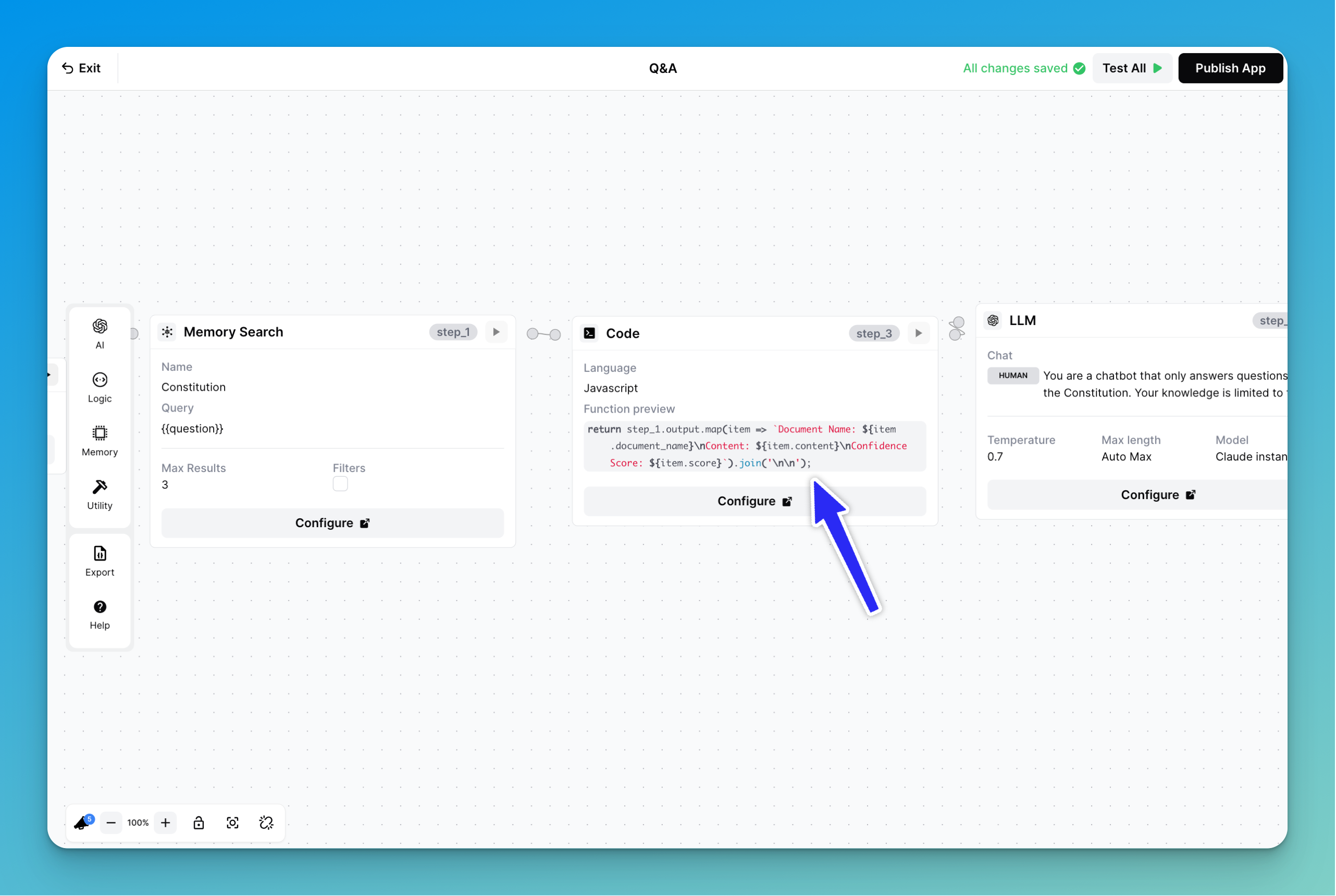
One of the best ways to handle this is by using our Code Step in conjunction with Liquid syntax. Our "Q\&A" Template shows a great example of how you can achieve this:
Our Code Step utilizes Javascript to format the JSON Blob into a more natural format for our LLM Step to interpret:
```javascript
return step_1.output.map(item => `Document Name: ${item.document_name}\nContent: ${item.content}\nConfidence Score: ${item.score}`).join('\n\n');
```
#### Formatting with Liquid
To pass context and formatted data to the LLM step, you can also use Liquid to format your Knowledge Base Search Step results.
We modify our earlier example output above by iterating over each chunk and returning the `metadata.title` and `metadata.description`:
```liquid
// Replace step_x.output
{% for chunk in step_x.output %}
Title: {{chunk.metadata.title}}
Description: {{chunk.metadata.description}}
{% endfor %}
```
---
# Agent Instructions
This documentation is published with GitBook. GitBook is the documentation platform designed so that both humans and AI agents can read, navigate, and reason over technical content effectively. Learn more at gitbook.com.
## Querying This Documentation
If you need additional information that is not directly available in this page, you can query the documentation by asking a question.
Perform an HTTP GET request on the following URL with the `ask` and `goal` query parameters:
```
GET https://docs.airops.com/actions/workflow-concepts/workflow-steps/memory-steps/memory-search.md?ask=&goal=
```
`ask` is the immediate question: it should be specific, self-contained, and written in natural language.
`goal` is what the user is ultimately trying to achieve, the reason they need the answer. Sharing it helps GitBook give you a better, more relevant answer. A goal is most helpful when it describes the outcome the user wants rather than restating the question. For example, with `ask=how do I create an API token`, a goal like `automate deployments from our CI pipeline` lets GitBook tailor the answer to that use case.
The response will contain a direct answer to the question and relevant excerpts and sources from the documentation.
Use this mechanism when the answer is not explicitly present in the current page, you need clarification or additional context, or you want to retrieve related documentation sections.