> For the complete documentation index, see [llms.txt](https://docs.airops.com/llms.txt). Markdown versions of documentation pages are available by appending `.md` to page URLs; this page is available as [Markdown](https://docs.airops.com/actions/workflow-concepts/workflow-steps/memory-steps/knowledge-base-read.md).
# Get Knowledge Base File
Read data from your Knowledge Bases by using filters.
## What is a Knowledge Base Read Step?
The Knowledge Base Read step allows you to query your Knowledge Bases by using filters in order to get any relevant data for use in your workflows. This is especially helpful when doing [Retrieval Augmented Generation](https://en.wikipedia.org/wiki/Retrieval-augmented_generation) (RAG).
The main difference between this step and the [Knowledge Base Search](/actions/workflow-concepts/workflow-steps/memory-steps/memory-search.md) step is that while in the search step, you can do queries and get text chunks, the read step allows you to apply filters and get full documents.
For more information on setting up a Knowledge Base, see our documentation page [here](/context/memory-stores.md).
## How to Configure a Knowledge Base Read Step
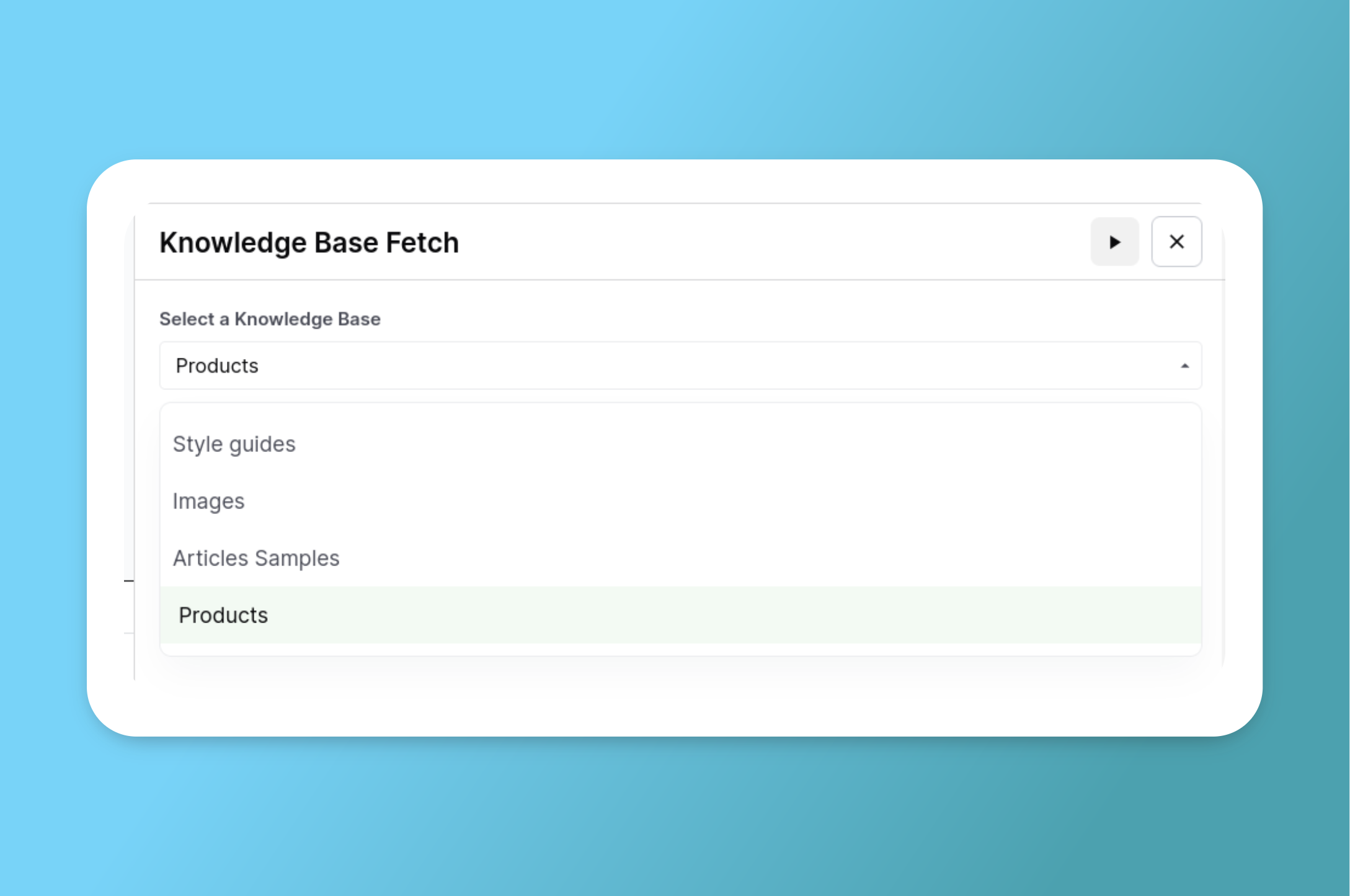
### Select a Knowledge Base
Select the Knowledge Base that you want to use from the dropdown.
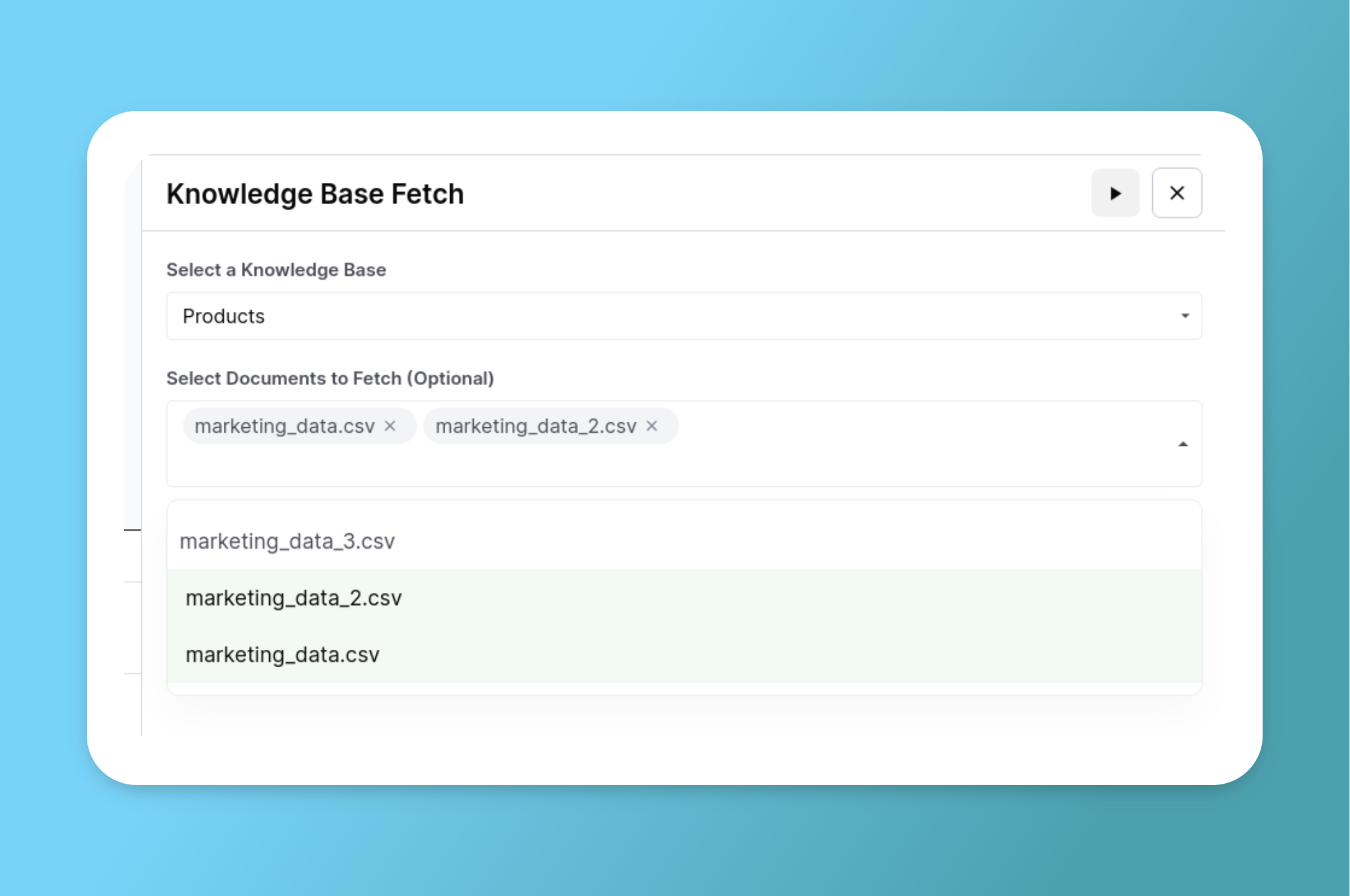
### Select specific files (optional)
You can optionally select multiple documents that you want to read from a list:
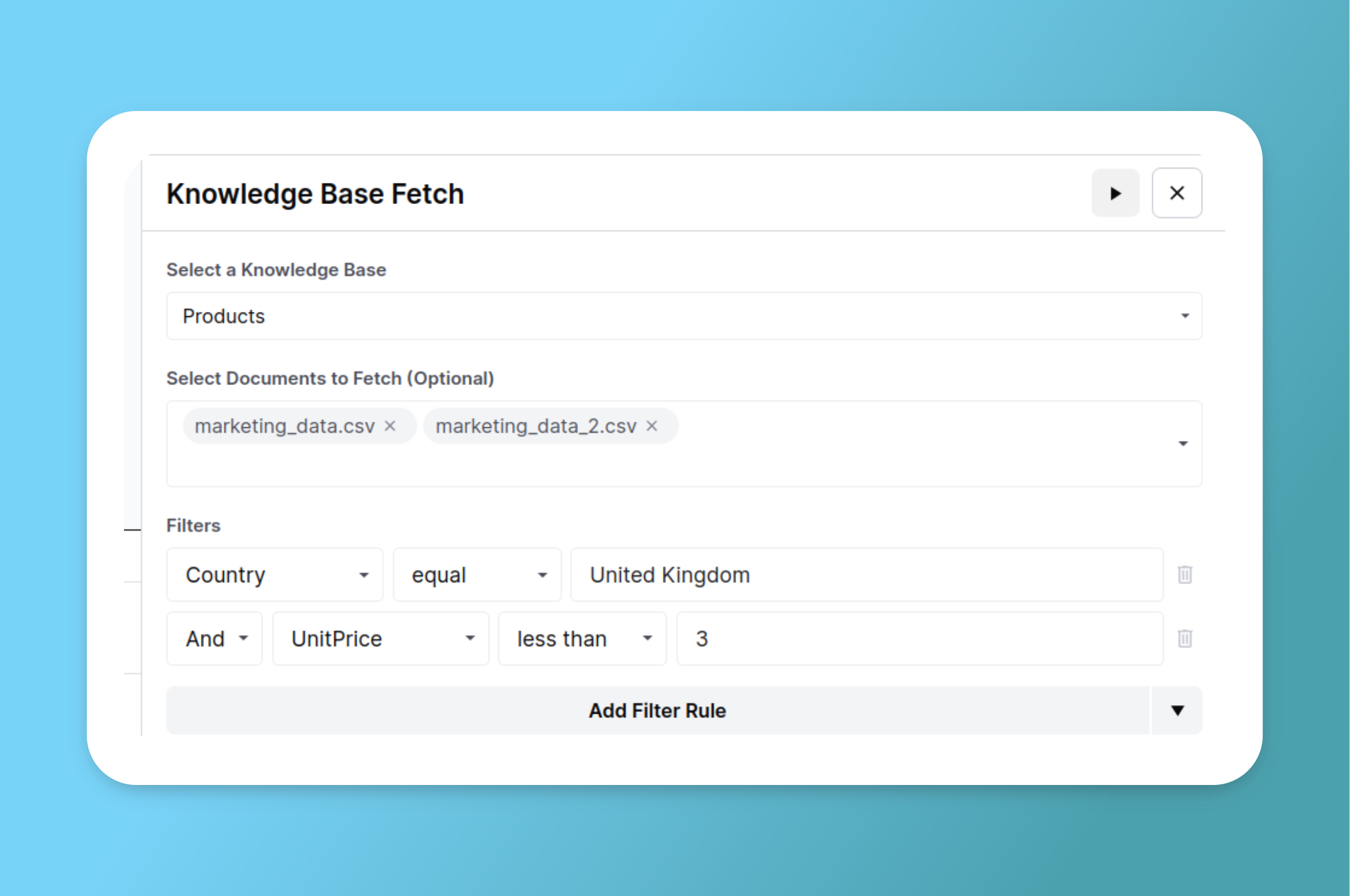
### Add Filters (Optional)
You can add filters to narrow down results based on metadata fields. This includes:
* **Standard metadata** inherited from the source (e.g., file name, source URL)
* **Custom metadata** you've added to tag files (e.g., country, product, audience)
* **CSV/Sheet columns** when the Knowledge Base contains structured data
**Example: Filtering by Custom Metadata**
If you have customer case studies tagged with a `country` custom metadata field, you can filter to retrieve only case studies for a specific region:
{% hint style="success" %}
**Dynamic Filtering**
Use workflow inputs to make filters dynamic. For example, set the filter to `country` equals `{{input.region}}` and the workflow will retrieve files matching whatever region is passed at runtime.
{% endhint %}
In order for the filtering to be effective, we recommend reading through [Knowledge Bases Metadata](/context/memory-stores/memory-stores-metadata.md) to learn how to add custom metadata tags to your Knowledge Base files.
## Knowledge Base Read Step Output
The Knowledge Base Read step will output a list of documents with their respective records. In our the previous filtered products example, the output will look like this:
```json
[
{
"document_name": "marketing_data.csv",
"records": [
{
"__text": "WHITE HANGING HEART T-LIGHT HOLDER\n\n-----\n\nUnited Kingdom",
"InvoiceNo": 536365,
"StockCode": "85123A",
"Description": "WHITE HANGING HEART T-LIGHT HOLDER",
"Quantity": 6,
"InvoiceDate": "12/1/2010 8:26",
"UnitPrice": 2.55,
"CustomerID": 17850,
"Country": "United Kingdom"
},
...
]
},
{
"document_name": "marketing_data_2.csv",
"records": [
{
"__text": "CREAM CUPID HEARTS COAT HANGER\n\n-----\n\nUnited Kingdom",
"InvoiceNo": 536365,
"StockCode": "84406B",
"Description": "CREAM CUPID HEARTS COAT HANGER",
"Quantity": 8,
"InvoiceDate": "12/1/2010 8:26",
"UnitPrice": 2.75,
"CustomerID": 17850,
"Country": "United Kingdom"
},
...
]
}
]
```
You can notice that:
* Only the documents that were selected from the dropdown are returned.
* Each document has a list of records attached to it. Since these documents are CSVs, each record represents a different row.
* Only the records that match the selected filters are returned (United Kingdom and UnitPrice < 3).
* There's a special "\_\_text" field that shows what's the searchable text selected during the CSV upload. Since in this case only the "Description" and "Country" columns were selected as searchable, those are the columns embedded in the "\_\_text" field.
The following is an example output of retrieving a pdf document:
```json
[
{
"document_name": "US_Congress-2023-SB546-Enrolled.pdf",
"records": [
{
"__text": "S. 546 \n\nOne Hundred Eighteenth Congress of the United States of America\n\nAT T H E S E C O N D S E S S I O N\n\nBegun and held at the City of Washington on Wednesday, the third day of January, two thousand and twenty four\n\nAn Act\n\nTo amend the Omnibus Crime Control and Safe Streets Act of 1968 to authorize law enforcement agencies to use COPS grants for recruitment activities, and for other purposes...",
"__languages": [
"eng"
],
}
]
}
]
```
## Using The Step Output In Order To Do RAG
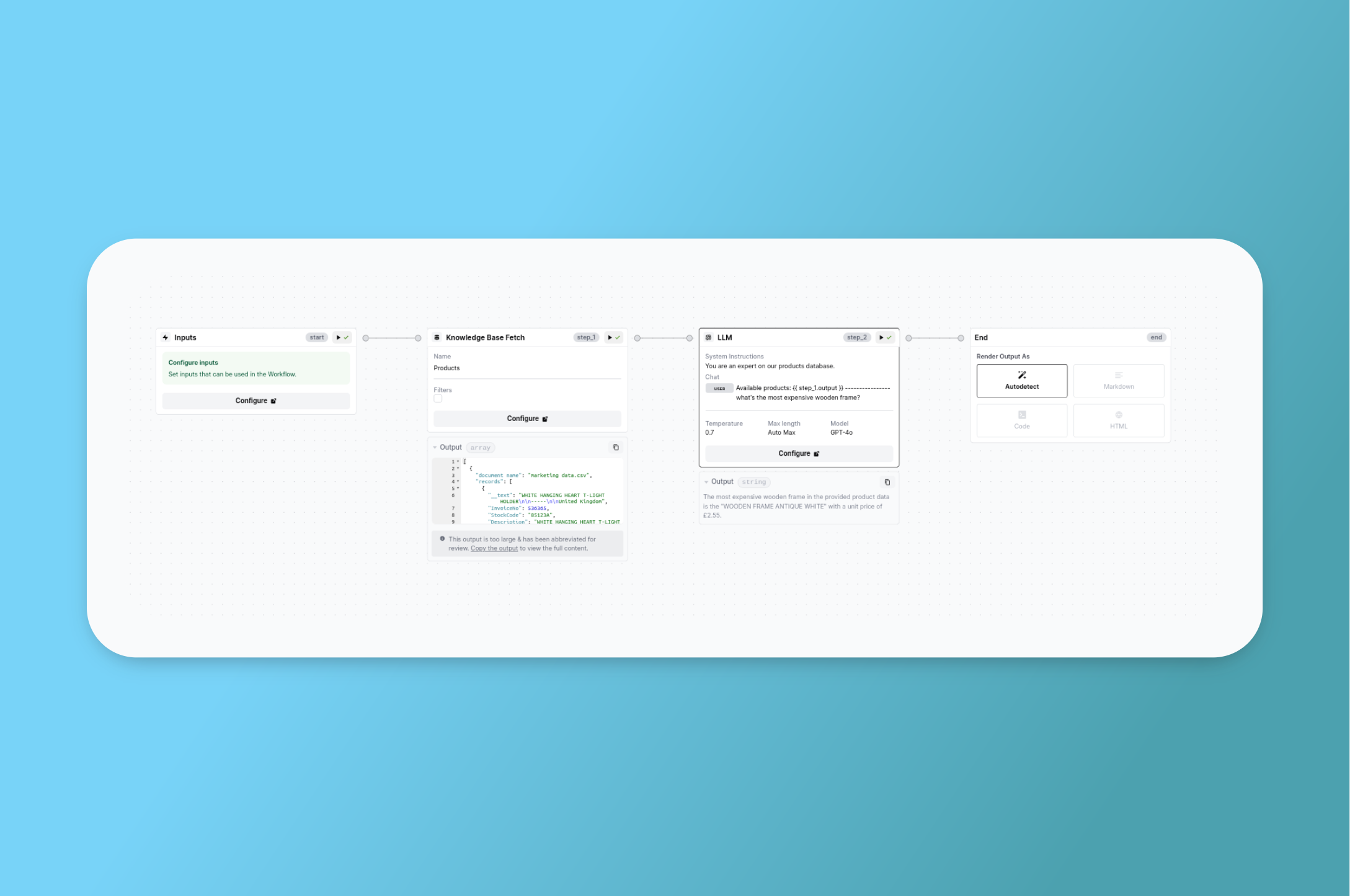
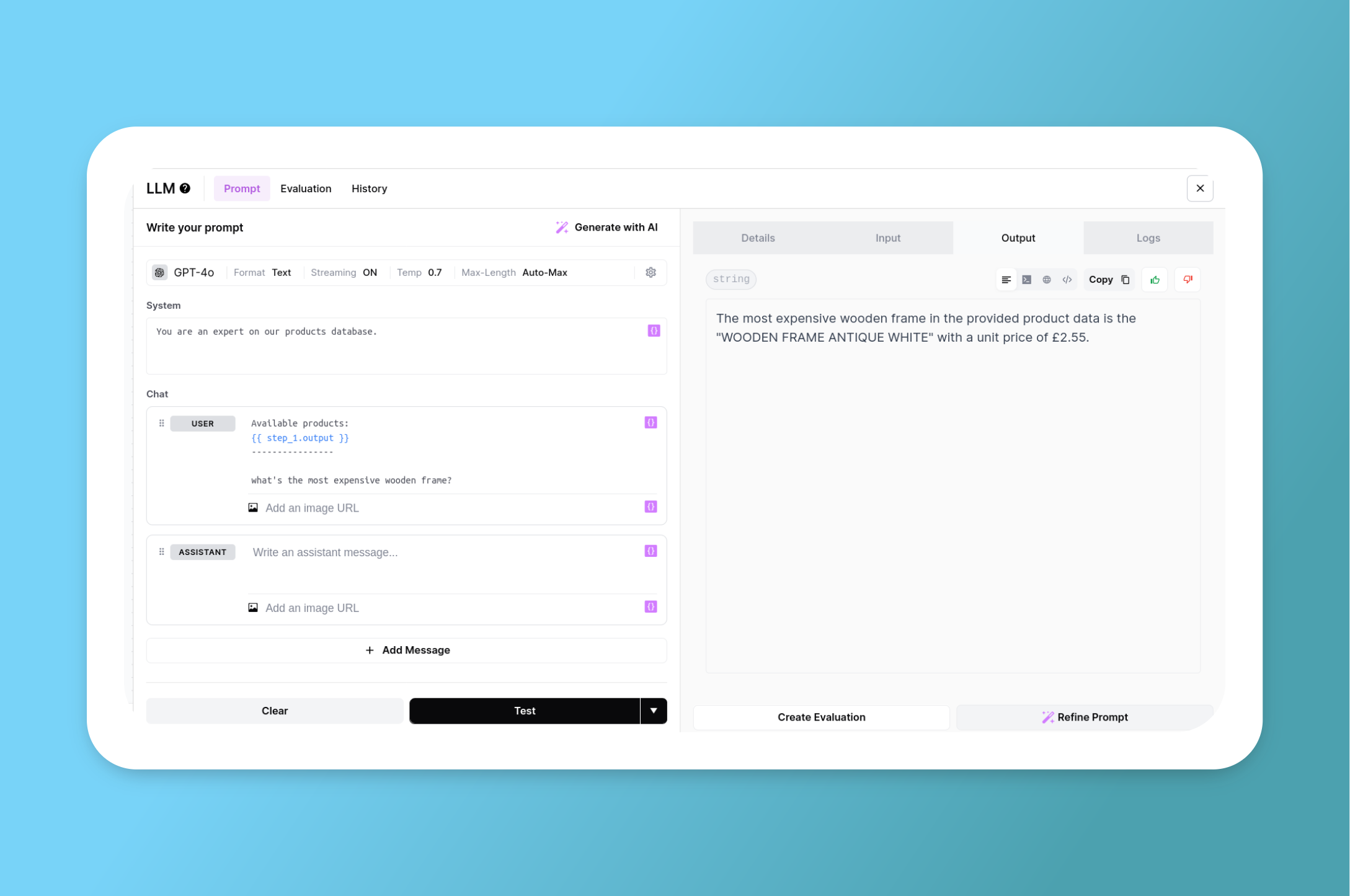
We can pass the output of the Knowledge Base Fetch step into an LLM step for doing Retrieval Augmented Generation.
Following with our products example, we can retrieve the full list of products and pass it into an LLM step like this:
---
# Agent Instructions
This documentation is published with GitBook. GitBook is the documentation platform designed so that both humans and AI agents can read, navigate, and reason over technical content effectively. Learn more at gitbook.com.
## Querying This Documentation
If you need additional information that is not directly available in this page, you can query the documentation by asking a question.
Perform an HTTP GET request on the following URL with the `ask` and `goal` query parameters:
```
GET https://docs.airops.com/actions/workflow-concepts/workflow-steps/memory-steps/knowledge-base-read.md?ask=&goal=
```
`ask` is the immediate question: it should be specific, self-contained, and written in natural language.
`goal` is what the user is ultimately trying to achieve, the reason they need the answer. Sharing it helps GitBook give you a better, more relevant answer. A goal is most helpful when it describes the outcome the user wants rather than restating the question. For example, with `ask=how do I create an API token`, a goal like `automate deployments from our CI pipeline` lets GitBook tailor the answer to that use case.
The response will contain a direct answer to the question and relevant excerpts and sources from the documentation.
Use this mechanism when the answer is not explicitly present in the current page, you need clarification or additional context, or you want to retrieve related documentation sections.