> For the complete documentation index, see [llms.txt](https://docs.airops.com/llms.txt). Markdown versions of documentation pages are available by appending `.md` to page URLs; this page is available as [Markdown](https://docs.airops.com/actions/grids/add-columns-in-the-grid.md).
# Add Columns in the Grid
Add data, Artifact, and Brand Kit columns to a Grid
AirOps Grid allows you to easily add and customize different types of columns to structure your data for AI processing and content creation workflows.
## How to Add Columns in the Grid
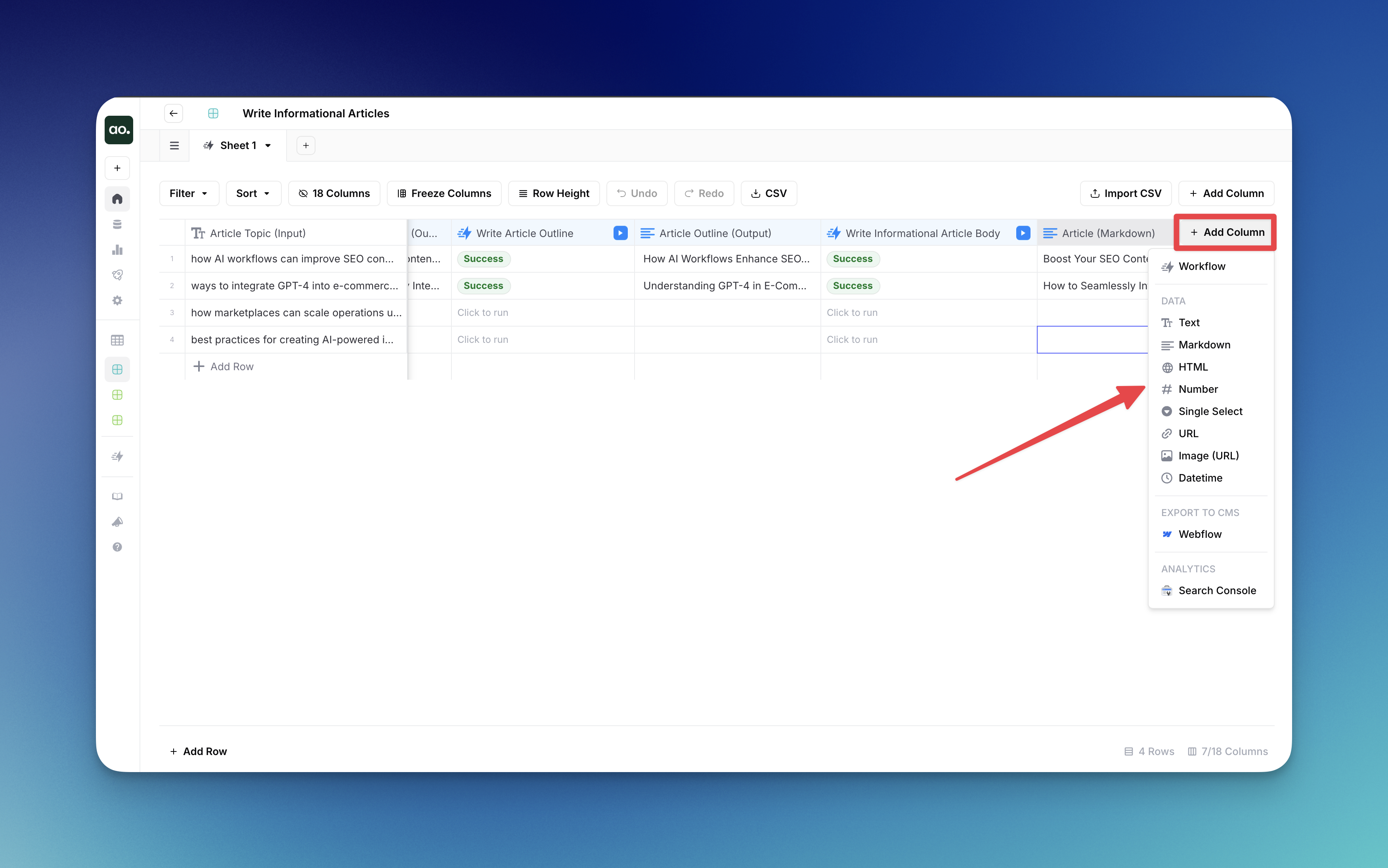
1. Click the **+ Add Column** button at the top of your Grid or at the end of your existing columns
2. Select the desired column type from the dropdown menu:
* **Data columns**:
* **Text**: Plain text content
* **Markdown**: Formatted text with Markdown syntax
* **HTML**: Web content with HTML formatting
* **Number**: Numerical values with formatting options for decimals, percentages, and currency
* **Single Select**: Dropdown selection from predefined options
* **Multi Select**: Choose multiple predefined options in one cell, such as authors, tags, or categories
* **URL**: Web addresses and links
* **Image (URL)**: Image references via URLs
* **File**: Store and manage files directly in Grid cells, with the ability to pass files into workflows
* **Artifact**: Link generated Playbook Artifacts to Grid cells so teams can review, sort, search, and reuse Session outputs from the Grid
* **Datetime**: Date and time values
* **JSON**: Structured data with expandable objects for easy viewing and editing
* **Person**: Assign workspace members to cells with automatic email notifications when assigned
* **Brand Kit**: Select Brand Kit dimensions (Product Lines, Content Types, Audiences, Regions) per row
3. A new blank column of your selected type will be added to the Grid
4. To change a column's type after creation:
* Click the three dots (⋮) in the column header
* Hover over the current column type
* Select a different type from the dropdown menu that appears
5. You can also manage your columns with additional options in the three-dot menu:
* **Filter**: Apply filters to the column
* **Hide Column**: Temporarily hide the column from view
* **Delete Column**: Permanently remove the column from your Grid
Adding and customizing columns allows you to create the perfect structure for your content creation and optimization workflows, ensuring all necessary data is organized and accessible.
## Convert a populated column to Single Select or Multi Select
1. Open the column header's three-dot menu, then open its current type.
2. Choose **Single Select** or **Multi Select** from the available types.
3. Review the detected options and affected-cell count. With up to 200 detected options, you can rename, recolor, reorder, add, remove, or change option values before conversion. Larger sets show a sample and use the detected options.
4. To merge options, give them the same label. The first option's value and color take precedence.
5. Click **Convert column** and wait for the conversion notification to finish.
When converting to Multi Select, text values can contain comma-separated options; quoted CSV values keep an embedded comma inside one option. JSON objects map labels to stored values. The [Format Single/Multi Select Step](/actions/workflow-concepts/workflow-steps/logic-steps/format-single-multi-select.md) can prepare this format from a Workflow.
Cells follow their options through renames and merges. Removing an option removes its selection from affected cells. When converting to Single Select, cells with multiple remaining values stay unselected; review the count shown in the preview.
{% hint style="warning" %}
When converting a collaborative column, review the warning about removing version history, comments, and collaboration state before proceeding.
{% endhint %}
### Convert select columns back to Text or JSON
Use the same type menu to choose **Text** or **JSON**. Text keeps the selected label, or a CSV line of labels for Multi Select. JSON keeps a label-to-value object. Conversion removes the column's option definitions.
## Select labels and values
Each Single Select or Multi Select option has a display label and a stored value. Use a readable label such as **In progress** with a value such as `in_progress` for downstream processing. Values are required and must be unique within the column.
The Grid displays the label. Reading or copying the cell returns its value. When you paste into a Single Select cell, AirOps matches the value first, then tries the label.
### Add options in bulk
In the Single Select or Multi Select configuration panel, enter one `label,value` pair per line under **Bulk add options**:
```
In progress,in_progress
Complete,complete
```
Click **Add options**, then **Save Column**. Each bulk add accepts up to 50 non-empty rows. Both a label and a value are required. AirOps skips duplicate labels or values using case-sensitive matching and reports how many options it added or skipped.
## Multi Select columns
Use a **Multi Select** column when a row needs more than one value, such as multiple authors for a CMS export. Add the options in the column configuration, then choose the values in each cell. You can also [add options in bulk](#add-options-in-bulk).
Map the column to a compatible CMS field or a Workflow Multi Select Input. Workflow execution preserves the selected values as an array, including when the Input passes through a nested Workflow or Power Step. Code steps can iterate over the array; Liquid interpolation renders it as JSON array text.
## Artifact Columns
Artifact columns link Grid cells to Playbook Artifacts. Use them when a Grid row needs to carry a generated output, such as a draft article, brief, or publish-ready asset, through review and downstream workflow steps.
Artifact cells stay connected to the Session Artifact. If you edit the Artifact from the Session, the Grid cell updates. If you open and edit the Artifact from the Grid cell, the Session Artifact reflects that change too.
You can sort and search Artifact cells like other Grid columns. Compatible Artifact columns can also be mapped to Webflow, WordPress, Contentful, and Sanity export fields, including the Webflow Item ID where the field type matches.
If adding an Artifact column would exceed your workspace's Grid column limit, AirOps displays the limit and leaves the Grid unchanged. Remove an unused column before trying again.
See [Artifacts](/actions/playbooks/artifacts.md) for comments, suggestions, mentions, version recovery, stable links, and downstream reuse. To score generated content for AI Discoverability and Brand Adherence, see [Content Review and Quality Scores](/actions/grids/review-content-in-the-grid/content-review.md).
## Brand Kit Columns
Brand Kit columns allow you to specify which slice of your Brand Kit context should be used for each row. This is especially useful for content creation workflows where different rows may target different products, audiences, or regions.
**How to add a Brand Kit column:**
1. Click the **+ Add Column** button
2. Select **Brand Kit** from the column type dropdown
3. Configure which Brand Kit dimensions to include:
* **Product Lines**: Select one or multiple products this content applies to
* **Content Types**: Choose the content format (e.g., Blog Post, Landing Page)
* **Audiences**: Select the target audience segment
* **Regions**: Choose the target market/region
**Benefits of using Brand Kit columns:**
* **Targeted context**: Only pass relevant brand information to workflows, avoiding confusion from irrelevant product or audience details
* **Efficient content production**: Create content for different product lines, audiences, or regions from a single Grid
* **Consistent branding**: Ensure content adheres to the correct writing rules for each dimension
{% hint style="info" %}
**Tip**: Organize your Grids by content type and use Brand Kit columns to specify product lines, audiences, and regions for each row. This creates a powerful, scalable content production pipeline.
{% endhint %}
---
# Agent Instructions
This documentation is published with GitBook. GitBook is the documentation platform designed so that both humans and AI agents can read, navigate, and reason over technical content effectively. Learn more at gitbook.com.
## Querying This Documentation
If you need additional information that is not directly available in this page, you can query the documentation by asking a question.
Perform an HTTP GET request on the following URL with the `ask` and `goal` query parameters:
```
GET https://docs.airops.com/actions/grids/add-columns-in-the-grid.md?ask=&goal=
```
`ask` is the immediate question: it should be specific, self-contained, and written in natural language.
`goal` is what the user is ultimately trying to achieve, the reason they need the answer. Sharing it helps GitBook give you a better, more relevant answer. A goal is most helpful when it describes the outcome the user wants rather than restating the question. For example, with `ask=how do I create an API token`, a goal like `automate deployments from our CI pipeline` lets GitBook tailor the answer to that use case.
The response will contain a direct answer to the question and relevant excerpts and sources from the documentation.
Use this mechanism when the answer is not explicitly present in the current page, you need clarification or additional context, or you want to retrieve related documentation sections.