> For the complete documentation index, see [llms.txt](https://docs.airops.com/llms.txt). Markdown versions of documentation pages are available by appending `.md` to page URLs; this page is available as [Markdown](https://docs.airops.com/context/memory-stores/add-data/import-from-google-drive.md).
# Import from Google Drive
## Importing Files from Google Drive
AirOps allows you to easily import content directly from Google Drive into your Knowledge Base, supporting Google Docs, Sheets, and PDFs. This integration enables you to leverage your existing documents without needing to download and re-upload them.
To import a file from Google Drive:
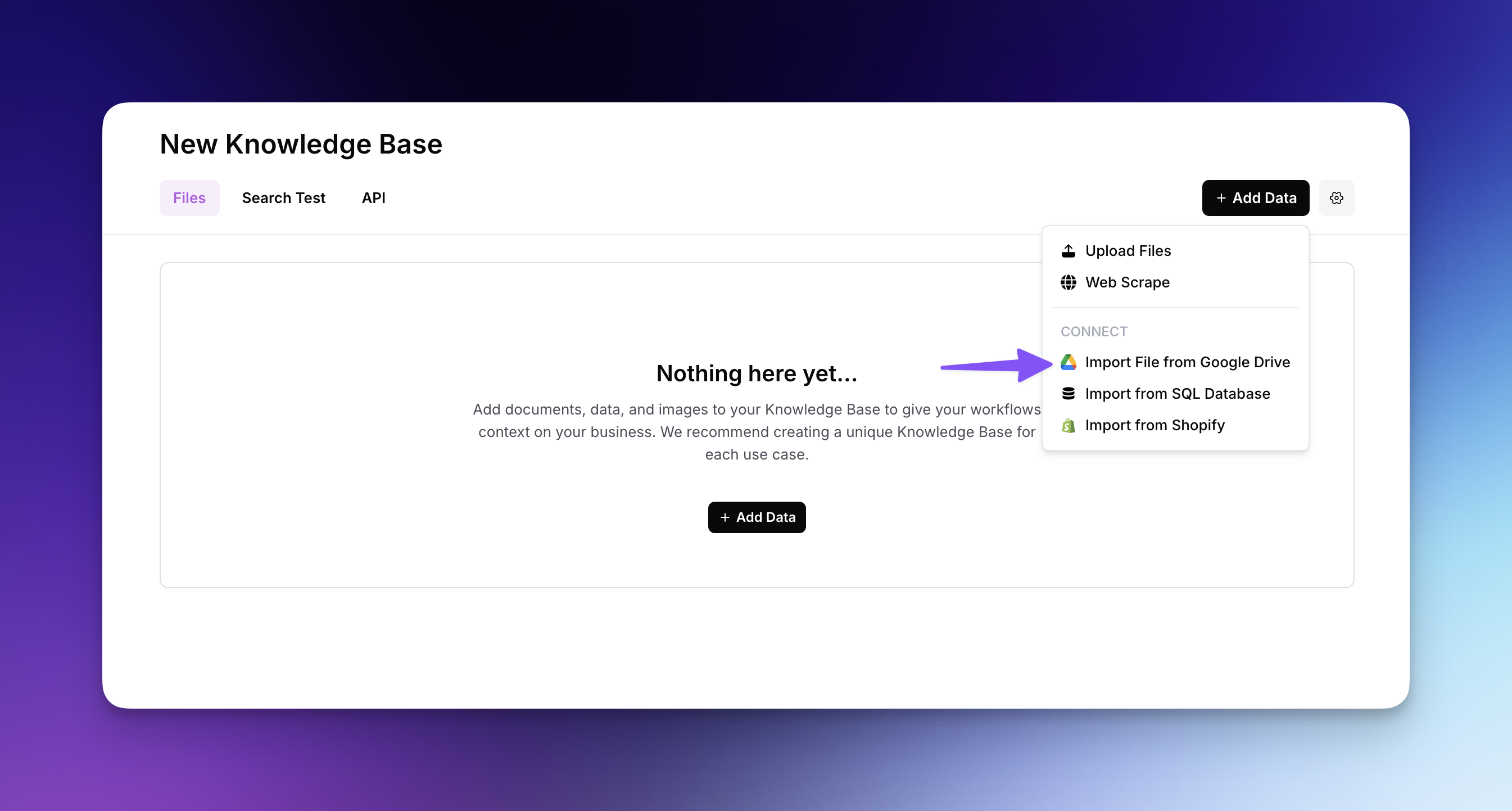
* Click "Add Data" and select "Import File from Google Drive" from the dropdown menu
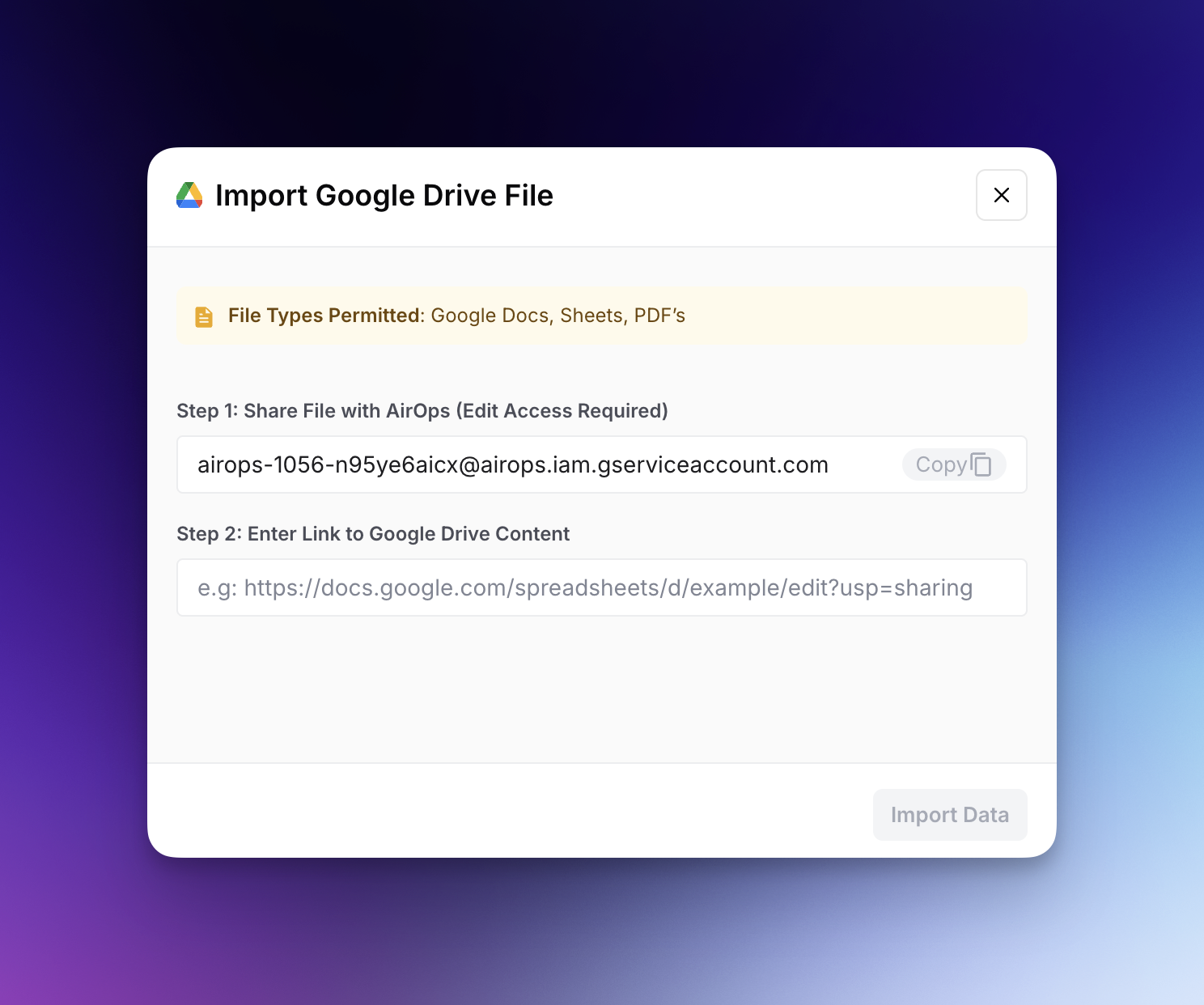
* Share your Google Drive file with the AirOps service account provided (with edit access)
* Copy and paste the shareable link to your Google Drive file in the designated field
* Click "Import Data" to add the content to your Knowledge Base
The content will be processed and made searchable through semantic search, allowing your workflows and agents to access this information when needed.
## Importing a Google Drive Folder
If you have many files to import at once, you can point AirOps at an entire Google Drive folder instead of adding files one by one. AirOps will scan the folder and import every supported file it finds.
To import a folder from Google Drive:
* Click "Add Data" and select "Import Folder from Google Drive" from the dropdown menu
* Share the Google Drive folder with the AirOps service account provided (with at least viewer access)
* Copy and paste the shareable link to the folder in the designated field
* Click "Import Data" to queue the import
The folder is processed asynchronously: AirOps lists the files in the folder, creates a document for each one in your Knowledge Base, and then syncs and indexes them in the background. Larger folders may take several minutes to fully appear as searchable content.
### Supported file types
When importing a folder, AirOps will pick up the following file types:
* Google Docs
* Google Sheets
* Google Slides
* Google Drive PDFs and uploaded PDF files
* CSV files
* Image files (PNG, JPEG, etc.)
Any other file types in the folder are skipped.
### Limitations
* **Nested folders are not supported.** Only files in the folder you provide are imported. Files inside subfolders are ignored. If you need to import content from a folder that contains subfolders, either flatten the structure first or import each subfolder separately.
* **Maximum of 1,000 files per folder import.** If a folder contains more than 1,000 supported files, only the first 1,000 returned by Google Drive will be imported. Split larger folders into smaller ones if you need to import everything.
* **The service account must have access to the folder.** If sharing is missing or the link is invalid, the import will fail with an authorization error. Re-share the folder with the AirOps service account and retry.
* **Only the file types listed above are imported.** Other formats (for example, `.docx`, `.zip`, video files) are silently skipped.
* **New files added to the folder later are not pulled in automatically.** AirOps takes a snapshot of the folder at import time. To pick up new or updated files, use the "Resync" action on the folder connector in your Knowledge Base, which re-scans the folder and adds any new supported files.
---
# Agent Instructions
This documentation is published with GitBook. GitBook is the documentation platform designed so that both humans and AI agents can read, navigate, and reason over technical content effectively. Learn more at gitbook.com.
## Querying This Documentation
If you need additional information that is not directly available in this page, you can query the documentation by asking a question.
Perform an HTTP GET request on the following URL with the `ask` and `goal` query parameters:
```
GET https://docs.airops.com/context/memory-stores/add-data/import-from-google-drive.md?ask=&goal=
```
`ask` is the immediate question: it should be specific, self-contained, and written in natural language.
`goal` is what the user is ultimately trying to achieve, the reason they need the answer. Sharing it helps GitBook give you a better, more relevant answer. A goal is most helpful when it describes the outcome the user wants rather than restating the question. For example, with `ask=how do I create an API token`, a goal like `automate deployments from our CI pipeline` lets GitBook tailor the answer to that use case.
The response will contain a direct answer to the question and relevant excerpts and sources from the documentation.
Use this mechanism when the answer is not explicitly present in the current page, you need clarification or additional context, or you want to retrieve related documentation sections.