> For the complete documentation index, see [llms.txt](https://docs.airops.com/llms.txt). Markdown versions of documentation pages are available by appending `.md` to page URLs; this page is available as [Markdown](https://docs.airops.com/actions/workflow-concepts/workflow-steps/logic-steps/code.md).
# Run Code
Add custom logic with Javascript or Python
## How does the Code Step work?
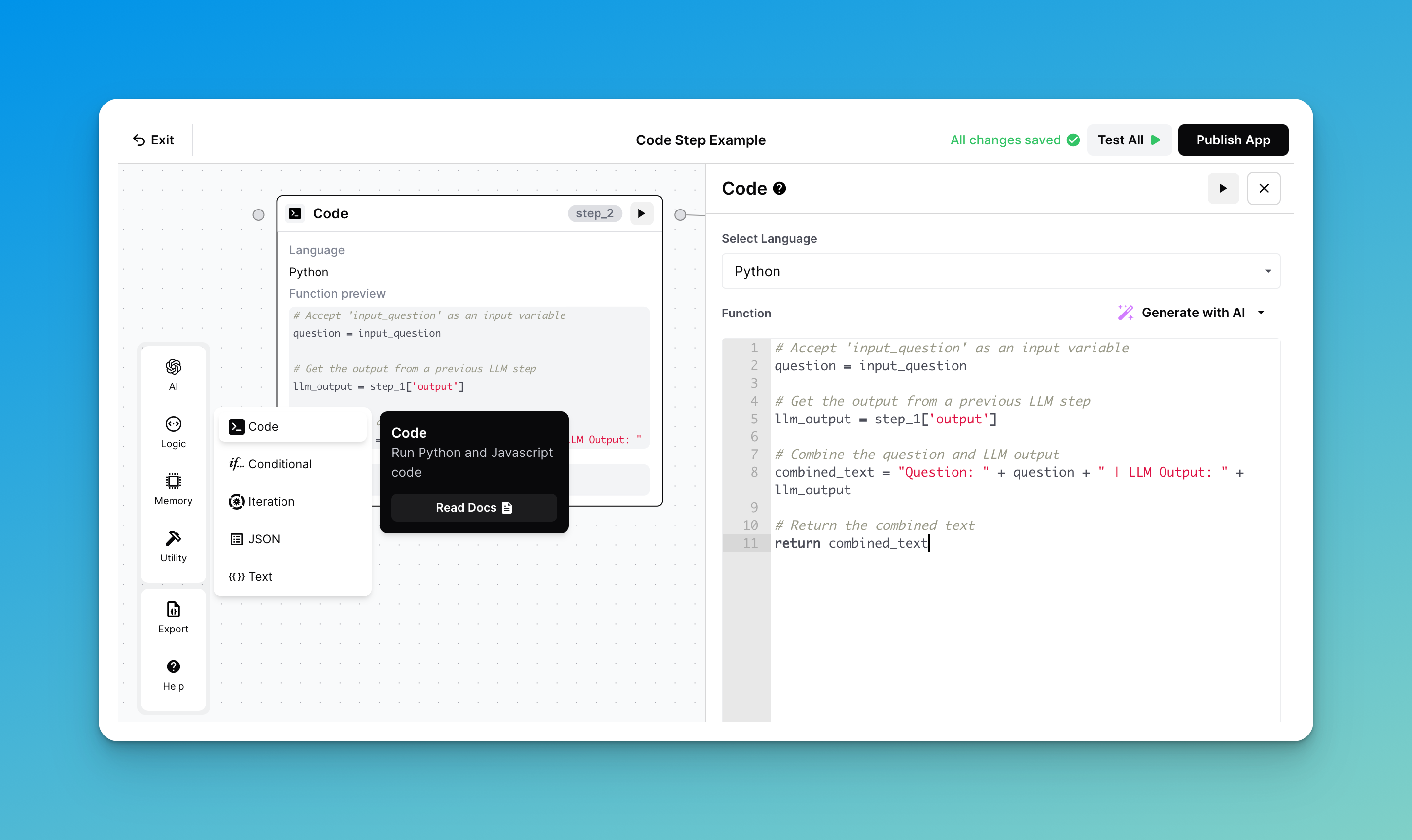
The Code Step in AirOps Studio currently supports **Javascript** and **Python**, which provides you with the flexibility needed to perform advanced requests.
{% hint style="warning" %}
The code in a Code Step is wrapped inside a function, and you must use a **return** statement to output results from the step.
{% endhint %}
Example Code Step
## Javascript
### How to Reference an Input
Unlike Liquid, Javascript variables **exclude** `{{` or `}}` . For example:
* `{{linkedin_url}}` would be `linkedin_url`
### How to Reference an Output
Javascript syntax is similar to Liquid, but excludes brackets:
* `{{step_1.output}}` would be `step_1.output`
* `{{step_1.output.name}}` would be `step_1.output.name`
### Use a Return Statement
You must include a `return` statement in a Code Step to determine the output of the step
### Javascript Example
Let's walk through an example that references both a text input as well as an LLM output. We'll use a basic Workflow that requests a string input, and returns a match of words that rhyme with it.
Our Code Step will simply be responsible for combining the input prompt with the LLM output, so we have just a single result that includes the question and answer:
{% @arcade/embed url="" flowId="ucsCBgcBlpyFyrPMzrZi" %}
## Python
### How to Reference an Input
Similar to Javascript, Python only requires direct reference to the variable name. So the same example from above holds true:
* `{{linkedin_url}}` would be `linkedin_url`
### How to Reference an Output
Python syntax must include brackets around the variable name:
* `{{step_1.output}}` would be `step_1["output"]`
* `{{step_1.output.key}}` would be `step_1["output"]["key"]`
### Use a Return Statement
You must include a `return` statement in a Code Step to determine the output of the step.
### Supported Python Packages
As of 2/13/2024:
```
pandas==1.3.4
requests
beautifulsoup4
lxml
pyjwt
urllib3==1.26.6
scipy
numpy
pycryptodome
bing-image-urls
markdown
PyPDF2
```
### Adding Additional Python Packages
While we're always looking to add to our natively supported packages, our Code Step does offer a workaround for working with additional packages.
When writing your Code Step, append the following code to your block:
```python
import os
import sys
import subprocess
# pip install custom package to /tmp/ and add to path
subprocess.call('pip install flask -t /tmp/ --no-cache-dir'.split(), stdout=subprocess.DEVNULL, stderr=subprocess.DEVNULL)
sys.path.insert(1, '/tmp/')
import flask
return 'import ok'
```
{% hint style="info" %}
Note: Any external libraries called with this method will get installed every time the Code Step runs, potentially adding noticeable seconds of execution time.
{% endhint %}
### Python Example
Let's walk through the same example from above, but in Python:
{% @arcade/embed url="" flowId="gM15e94F8pxxwY3ExGy3" %}
## AI Helpers
Both Python and Javascript support using our AI Helper to generate code. This can be useful if you're struggling to find the exact syntax in either language to achieve your goal.
Similar to the prompt for an LLM, we recommend being as clear and thorough in your description as possible.
{% @arcade/embed %}
Once our AI Helpers have generated the code, you can keep or reject the generated text. If you decide you want to add or remove the code later on, you can use the same "Generate with AI" button to modify your prompt and code.
## How to continue if the Code step fails
By default, the code step will terminate the workflow if it fails. However, to continue the workflow if the step fails, simply click `Continue` at the bottom of the step.
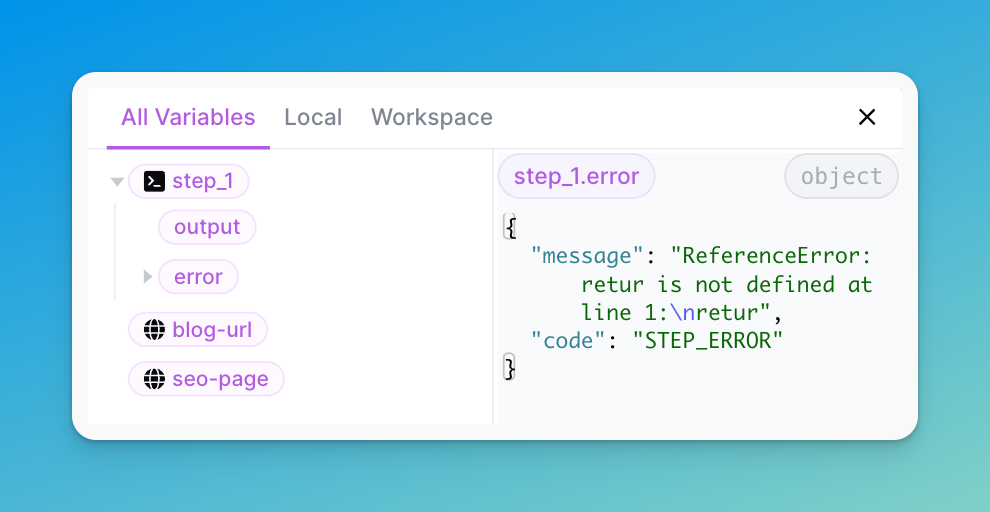
Click continue to continue the workflow
The step will return the following keys:
* `output` : this will be `null`
* `error` :
* `message`: the message returned from the step
* `code` : the error code representing the error
## How to retry if the Code step fails
To retry a step if it fails,
1. Select `Continue` instead of `Terminate Workflow` if the step fails
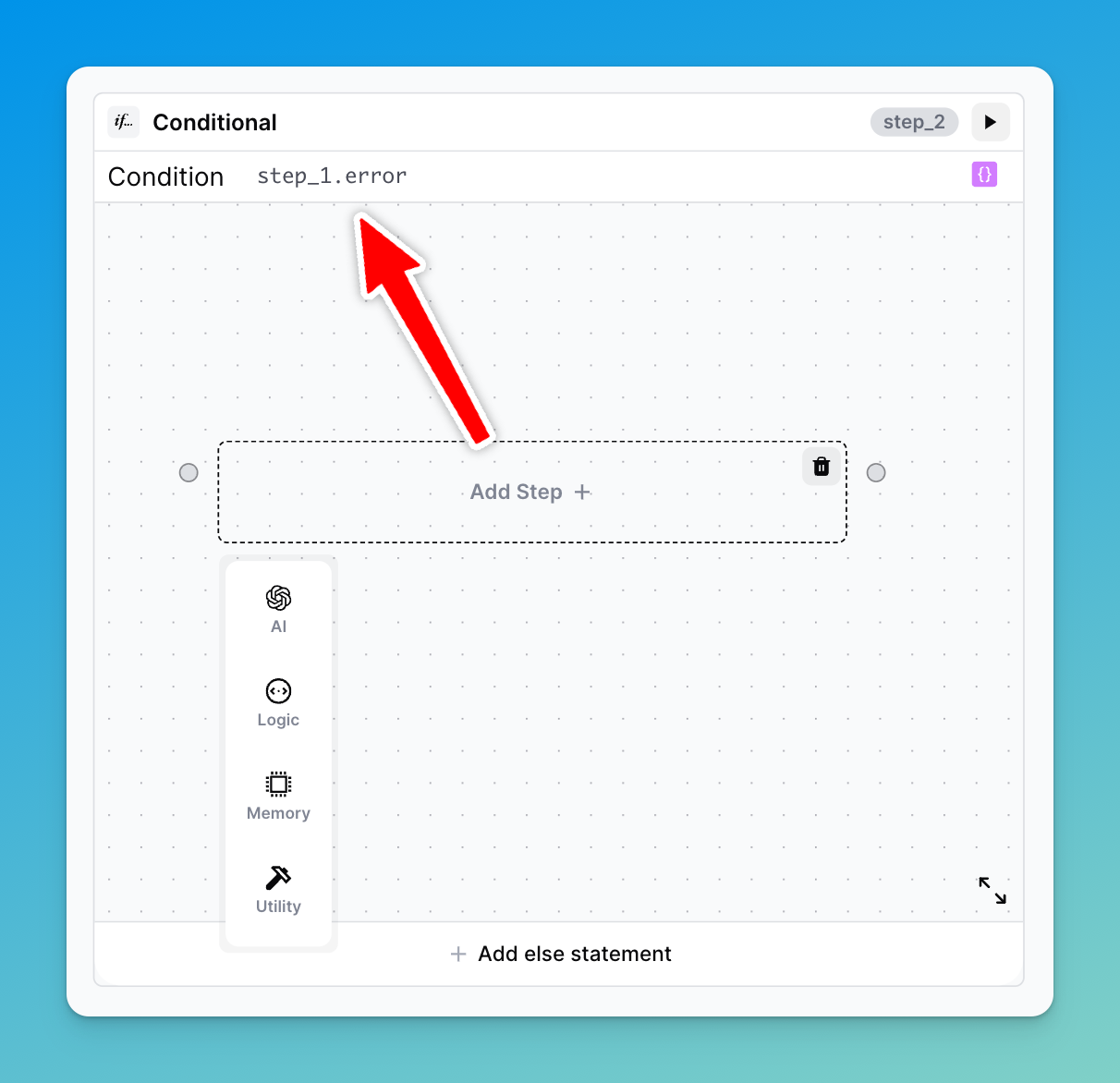
2. Add a conditional where the condition checks if the `error` from the step exists e.g. `step_1.error`
3. Add the step that you want to retry if there was an error
Check if an error occurred
## Limits
There are two main limits to be aware of regarding our Code Step:
1. They have a maximum runtime of 15 minutes
2. The maximum payload size is 6MB
---
# Agent Instructions
This documentation is published with GitBook. GitBook is the documentation platform designed so that both humans and AI agents can read, navigate, and reason over technical content effectively. Learn more at gitbook.com.
## Querying This Documentation
If you need additional information that is not directly available in this page, you can query the documentation by asking a question.
Perform an HTTP GET request on the following URL with the `ask` and `goal` query parameters:
```
GET https://docs.airops.com/actions/workflow-concepts/workflow-steps/logic-steps/code.md?ask=&goal=
```
`ask` is the immediate question: it should be specific, self-contained, and written in natural language.
`goal` is what the user is ultimately trying to achieve, the reason they need the answer. Sharing it helps GitBook give you a better, more relevant answer. A goal is most helpful when it describes the outcome the user wants rather than restating the question. For example, with `ask=how do I create an API token`, a goal like `automate deployments from our CI pipeline` lets GitBook tailor the answer to that use case.
The response will contain a direct answer to the question and relevant excerpts and sources from the documentation.
Use this mechanism when the answer is not explicitly present in the current page, you need clarification or additional context, or you want to retrieve related documentation sections.