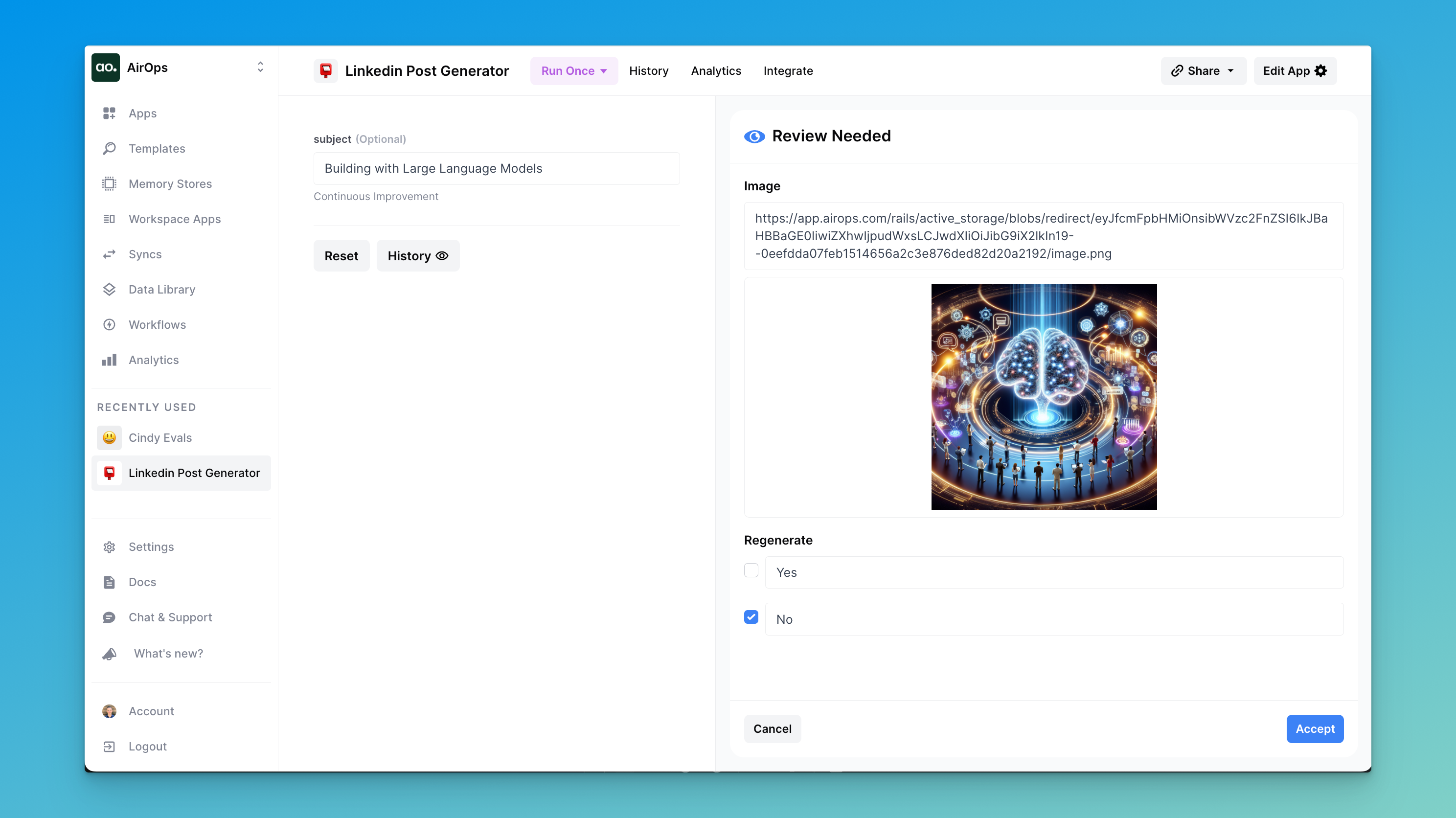
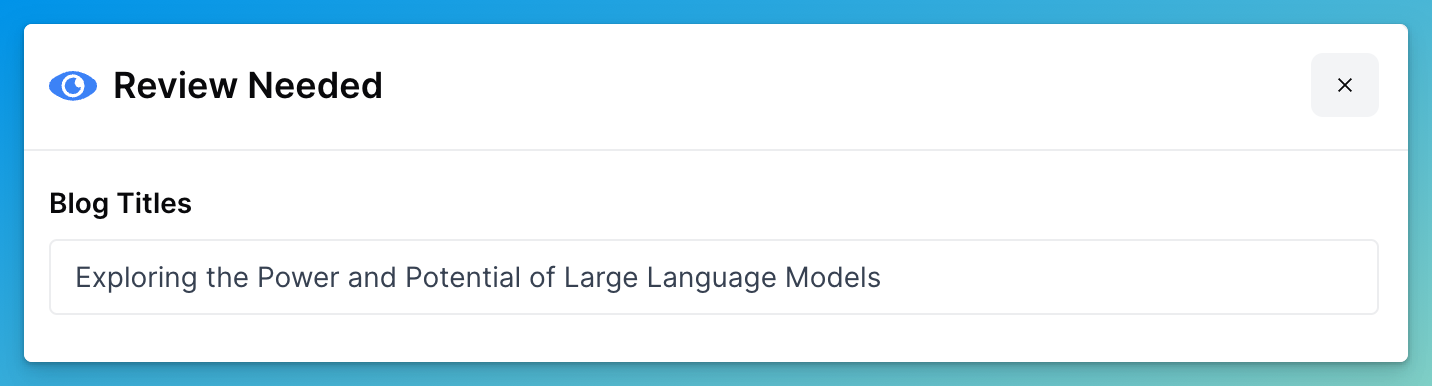
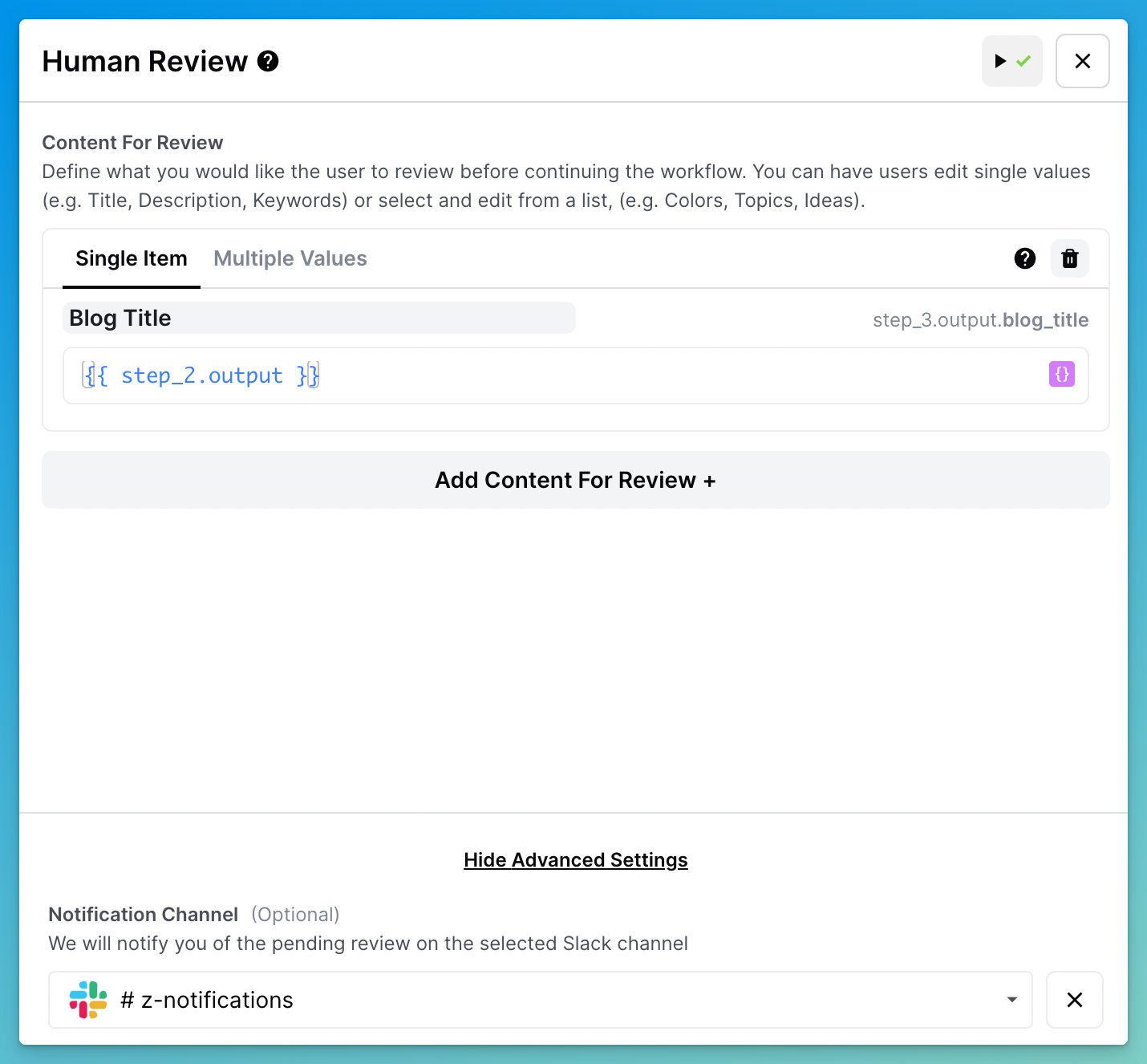
# Human Review

<figure><img src="/files/oc5TWMONtUL7cF1MRytK" alt=""><figcaption></figcaption></figure>

With the Human Review step, the user can be prompted to review, validate, and edit a text value (*Single Item*) or select and edit multiple values (*Multiple Values*) before continuing a workflow.

For example, you could create a list of 5 blog titles for a user to select from, ask the user to review and select the titles to publish with a review step, and finally publish the selected content to your blog.

## Review a Single Item

### What is a Single Item?

The single item allows the user to edit the text from a single-line text box:

<figure><img src="/files/PlNIA0PxzPDKF7lNzwX8" alt=""><figcaption><p>Single Item Review</p></figcaption></figure>

### How to Configure a Single Item

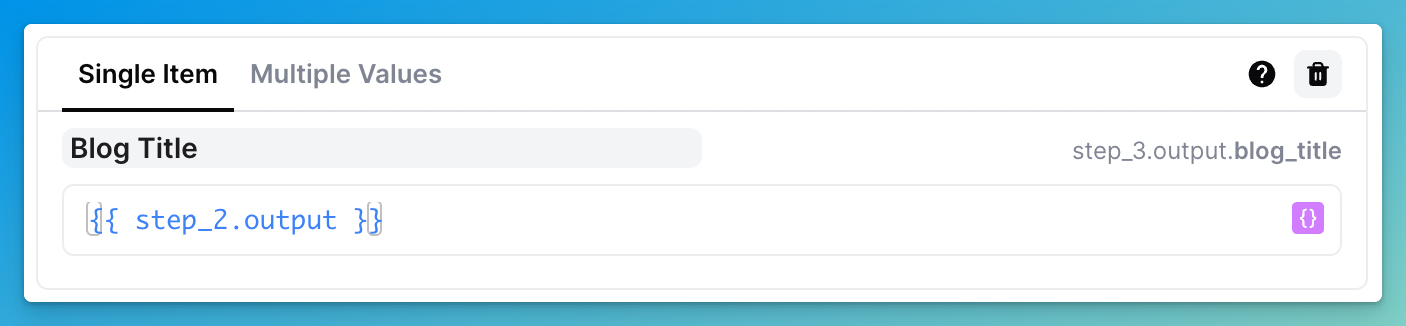
1. **Label the item:** the label will automatically create the variable name associated with your label. In the example below, we label our item "Blog Title", which also created the variable `blog_title`
2. **Assign the value of the item:** use Liquid syntax to pass the value that you want the user to edit and review. In the example below, this is `{{step_2.output}}`
3. **(Optional) Notify a Slack channel:** choose a Slack channel which will notify users to review the output

<figure><img src="/files/BSoEVvkkwSy1owlbI1px" alt=""><figcaption><p>Single Item Configuration</p></figcaption></figure>

## Review Multiple Values

### What is are Multiple Values?

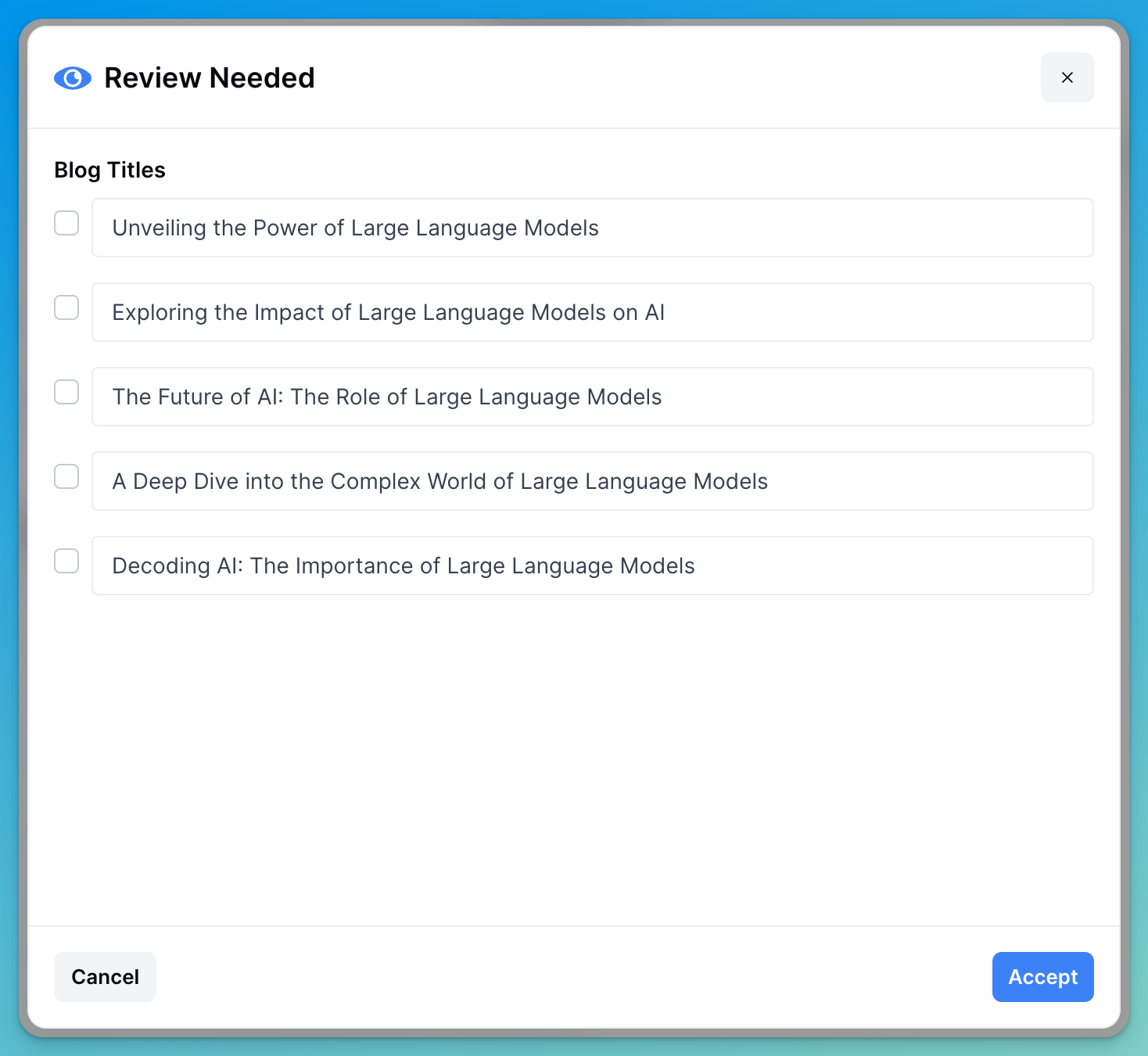
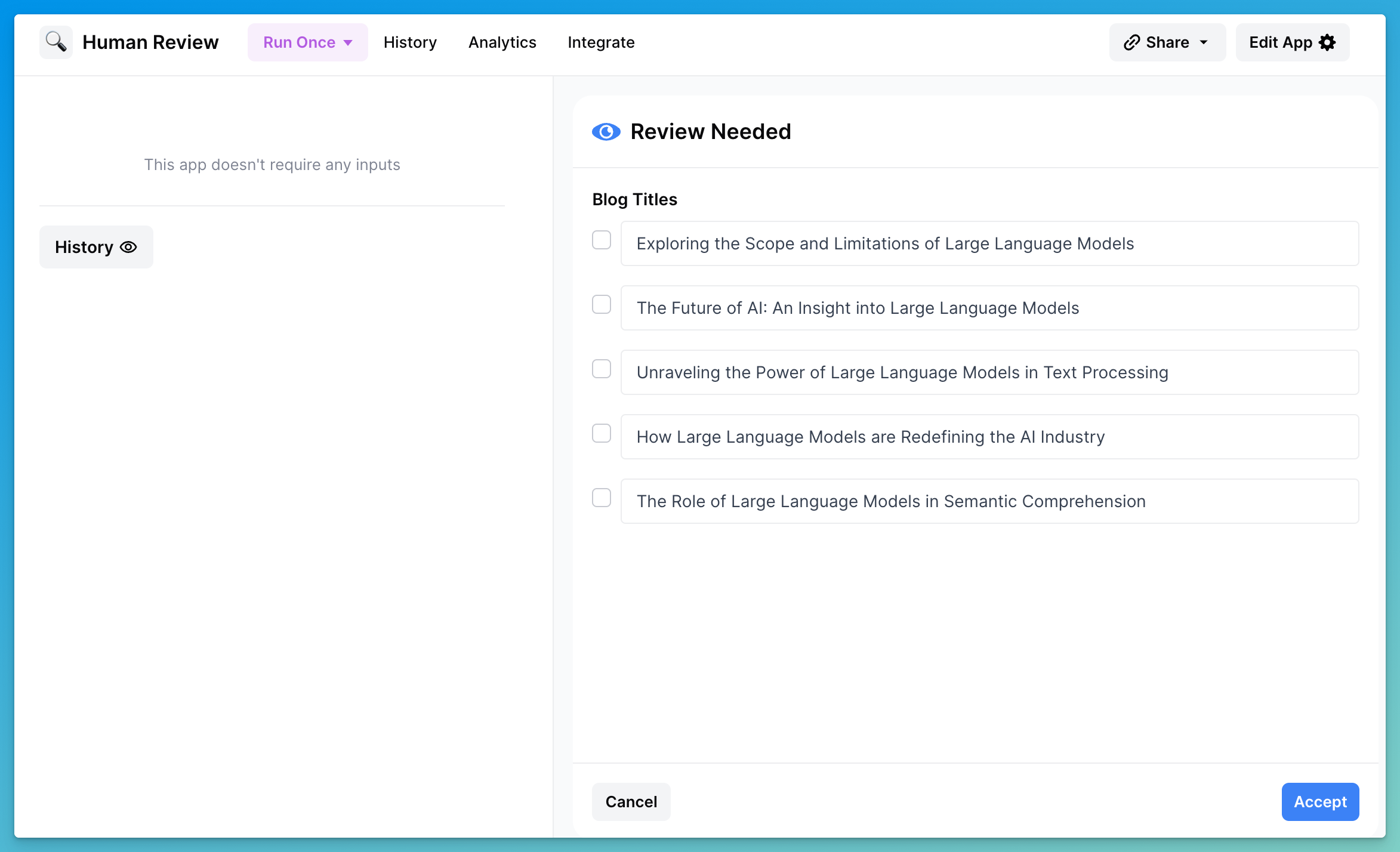
Multiple values allow the user to select and edit multiple values at once:

<figure><img src="/files/3C13T0qEQAJy14xMBRIK" alt=""><figcaption><p>Multiple Values Review</p></figcaption></figure>

### How to Configure Multiple Values

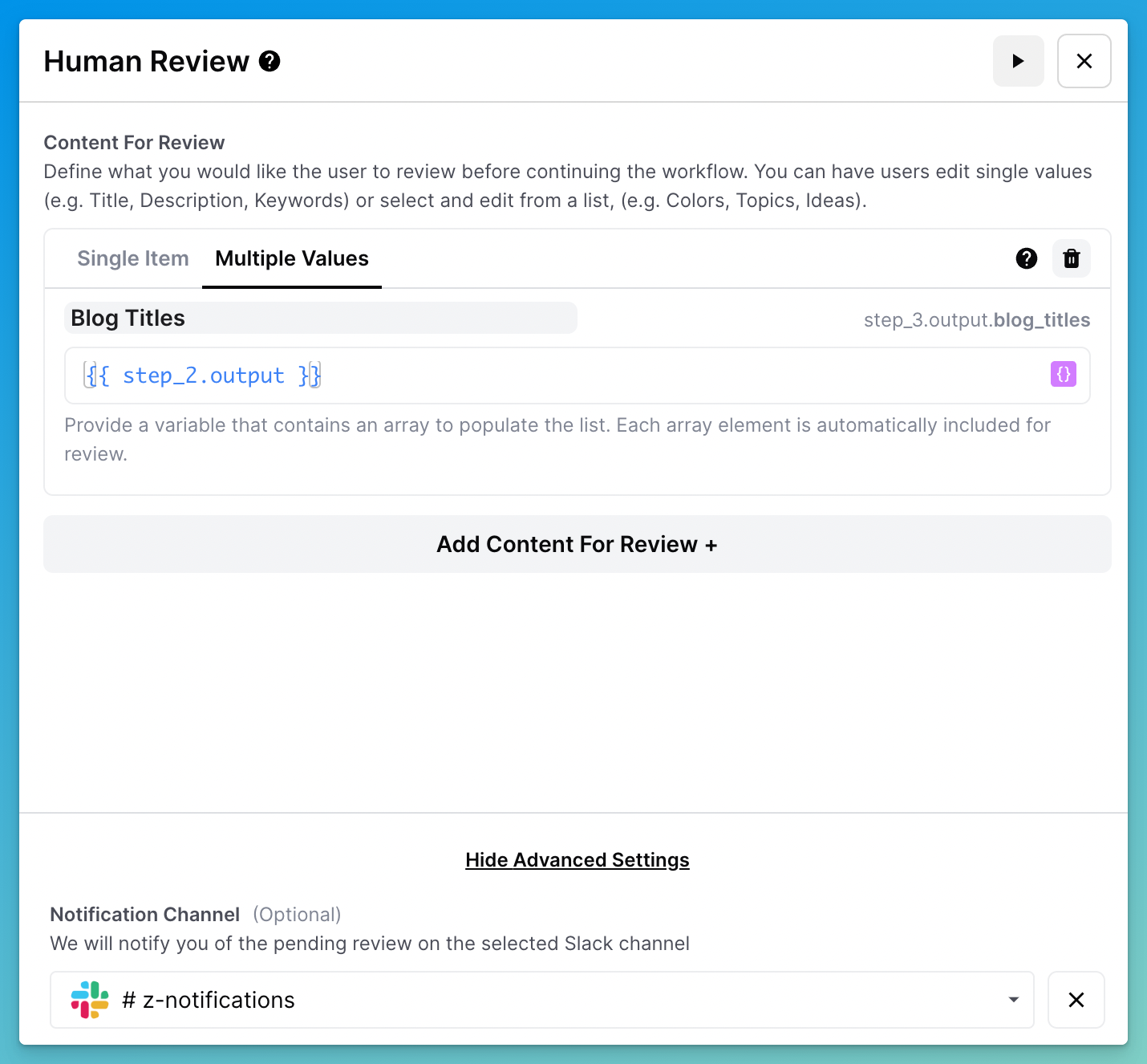
1. Set up a list of options:

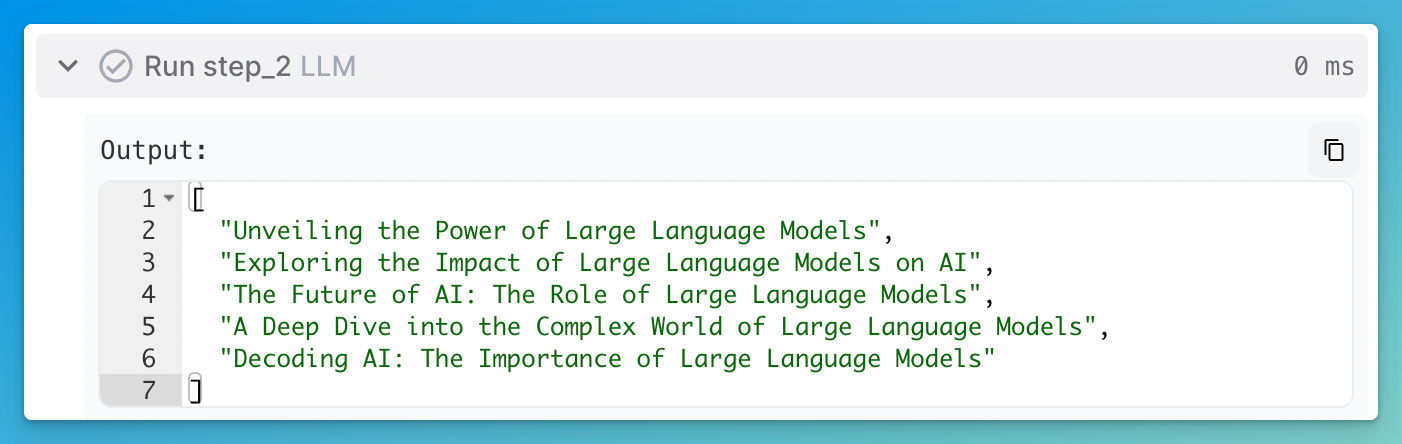
   1. **Generate a list:** use an LLM step to generate a list of items, it must be an Array

      <figure><img src="/files/OZRi1Ve5UxuRAifzYijf" alt=""><figcaption><p>A list of 5 blog titles</p></figcaption></figure>
   2. **Label the item:** the label will automatically create the variable name associated with your label. In the example below, we label our item "Blog Titles", which also created the variable `blog_titles`
   3. **Assign the value of the item:** use Liquid syntax to pass the list you generated in Step 1. In the example below, this is `{{step_2.output}}`
   4. **(Optional) Notify a Slack channel:** choose a Slack channel which will notify users to review the output

   <figure><img src="/files/EKeg0GA4twnQcUlgYnif" alt=""><figcaption><p>Multiple Values Configuration</p></figcaption></figure>

## Referencing the Human Review Step

### How to Reference a Single Item

To reference a single item from the Human Review step, use the variable corresponding to the label you provided.

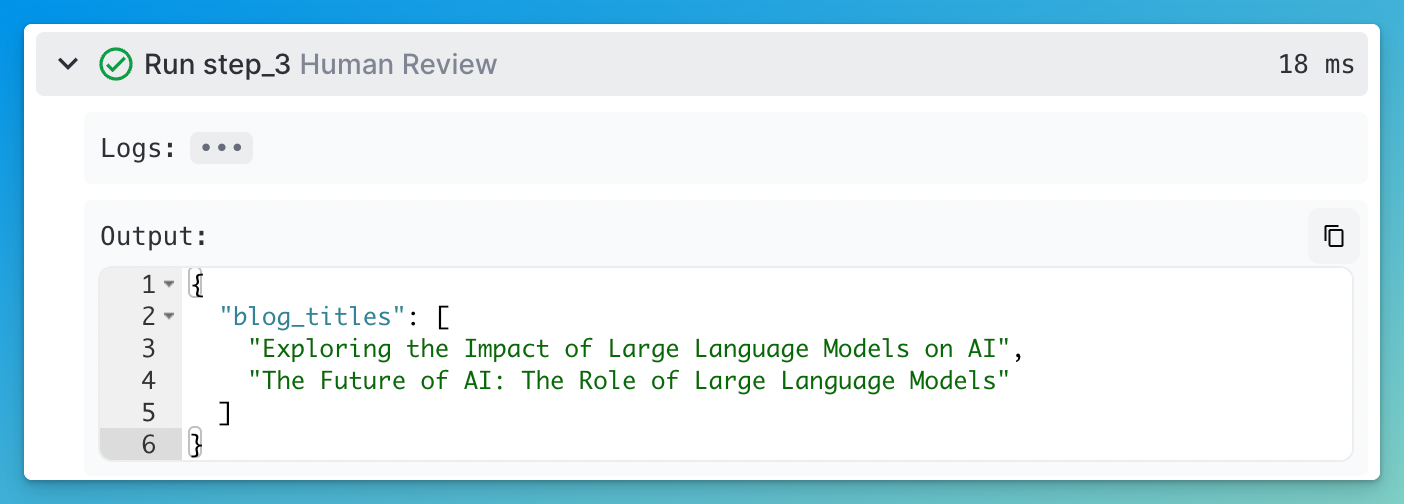
In this example, we named the item "Blog Title" which created the variable `{{step_3.output.blog_title}}` :

<figure><img src="/files/yA1YpejKS9VTdYUwCNRc" alt=""><figcaption><p>Referencing a Single Item</p></figcaption></figure>

### How to Reference Multiple Values

To reference multiple values from the Human Review step, use the variable corresponding to the label you provided.

However, unlike referencing a single item, the output of a multiple value review is a list:

<figure><img src="/files/4JwzPSmgv42L0qUYrej9" alt=""><figcaption><p>Referencing Multiple Values</p></figcaption></figure>

In other words, `{{step_3.output.blog_titles}}` from the example above gives the user a list of blog titles. If you want to reference only the first blog title, you would need to modify your syntax to `{{step_3.output.blog_titles[0]}}`.

## Review Session

When a workflow reaches the review step, it pauses the execution, leaves the workflow in a pending state for review, and creates a review session where the user can review the content.

### How to Review Output

* **For single items,** you can edit the content using *markdown* syntax.
* **For multiple values,** you can edit the values and select/unselect them.
* After editing you can either choose to accept the reviewed content, or cancel the execution.

### Review in the Test Panel

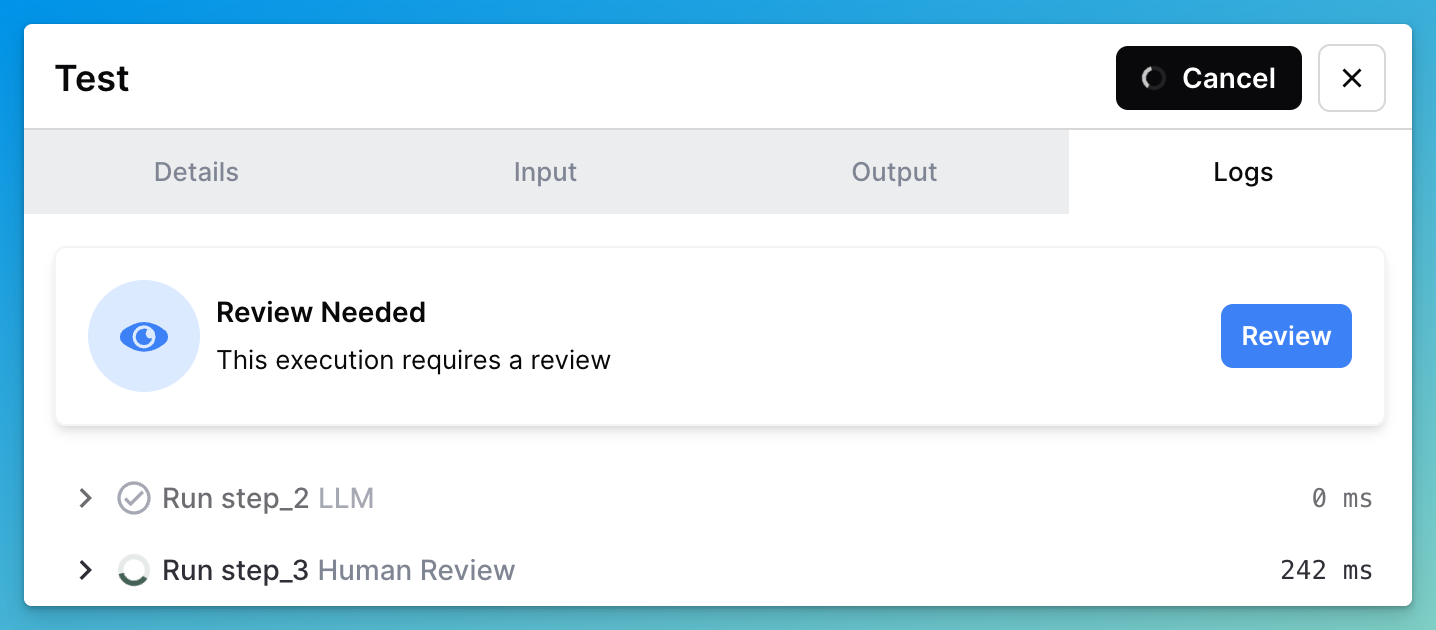
As you test your workflow, you can access the review session by clicking on "Review":

<figure><img src="/files/zFxC2FEg98jqkpUmJAST" alt=""><figcaption><p>Review in the test panel</p></figcaption></figure>

### Review in Real-Time when Running Once

When you Run Once, the review session will automatically appear, and your user can review the outputs in real-time:

<figure><img src="/files/37mXKdP6uLcegM7AcQ4U" alt=""><figcaption><p>Review when running once</p></figcaption></figure>

### Review Asynchronously in the History

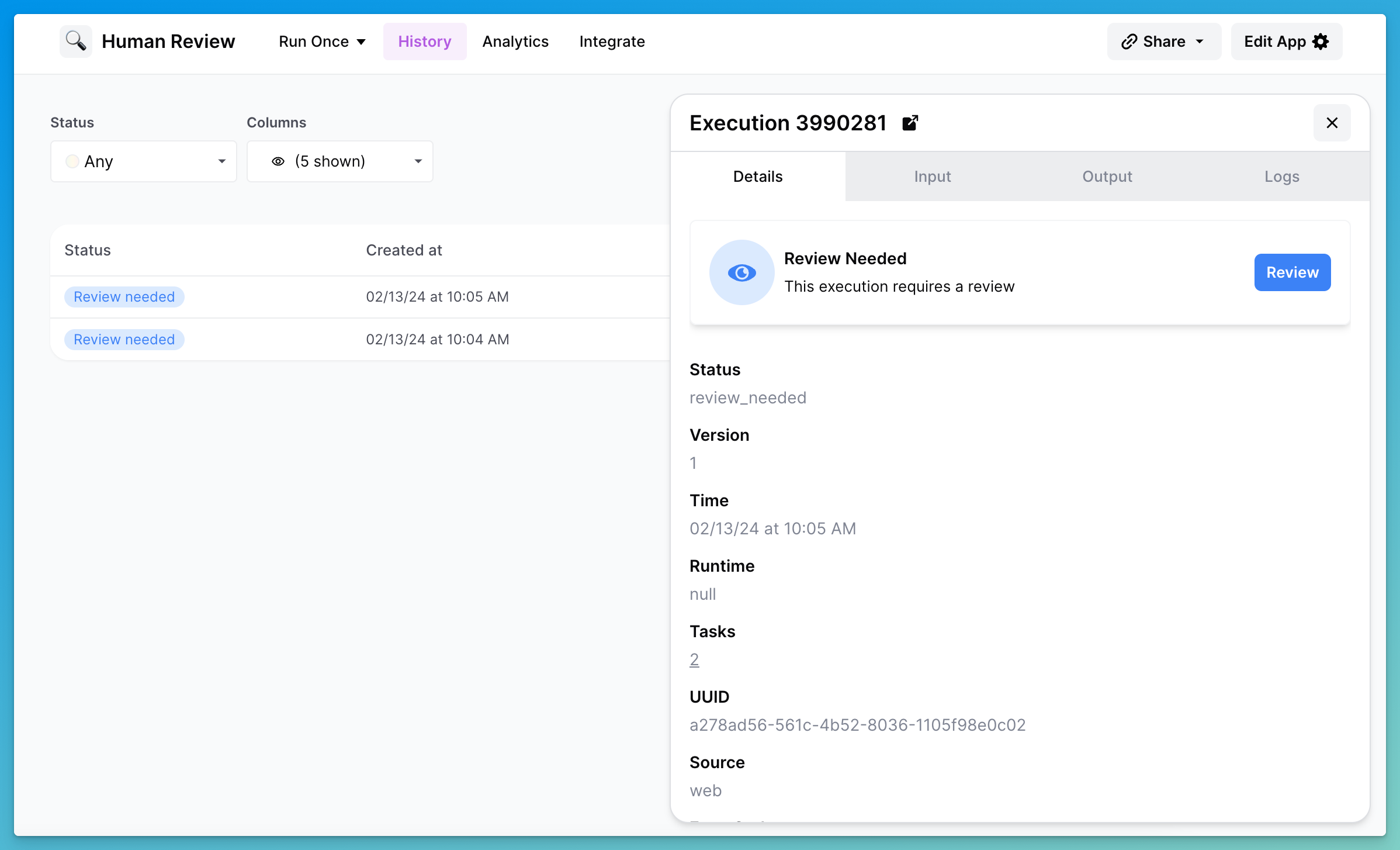
To review executions asynchronously, you can review them in the **History** tab:

1. Click on **History** to view all executions
2. Filter the **Status** to **Review needed**
3. Click on **View** in the Actions column
4. Click on **Review** to review the output and continue the execution

<figure><img src="/files/nh1vSauZttuzphk2M3f6" alt=""><figcaption><p>Review from the history tab</p></figcaption></figure>


---

# Agent Instructions: Querying This Documentation

If you need additional information that is not directly available in this page, you can query the documentation dynamically by asking a question.

Perform an HTTP GET request on the current page URL with the `ask` query parameter:

```
GET https://docs.airops.com/actions/workflow-concepts/workflow-steps/flow/human-review.md?ask=<question>
```

The question should be specific, self-contained, and written in natural language.
The response will contain a direct answer to the question and relevant excerpts and sources from the documentation.

Use this mechanism when the answer is not explicitly present in the current page, you need clarification or additional context, or you want to retrieve related documentation sections.