> For the complete documentation index, see [llms.txt](https://docs.airops.com/llms.txt). Markdown versions of documentation pages are available by appending `.md` to page URLs; this page is available as [Markdown](https://docs.airops.com/actions/workflow-concepts/workflow-steps/flow/conditional.md).
# Condition
Branch your workflow logic
## Condition Step
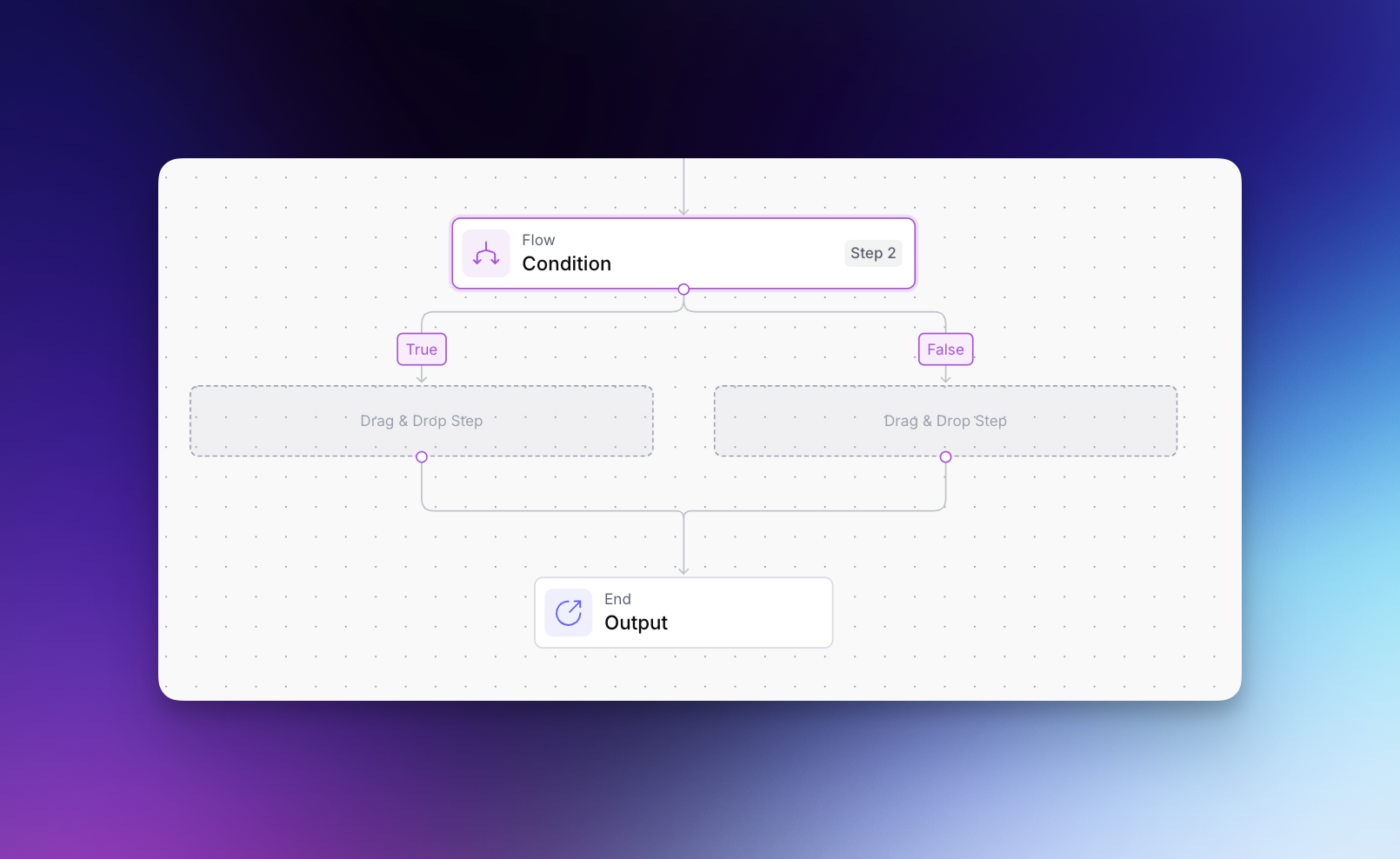
The Condition Step allows you to create branching logic in your workflows, executing different steps based on whether a specified condition evaluates to `True` or `False`.
### What is a Condition Step?
A Condition Step acts as a decision point in your workflow, directing the flow based on a JavaScript expression that you define. It consists of:
1. **The Condition**: A JavaScript expression that evaluates to either `True` or `False`
2. **True Path**: Steps that execute when the condition evaluates to `True` (left branch)
3. **False Path**: Steps that execute when the condition evaluates to `False` (right branch)
### How to Configure a Condition Step
1. Click the "+" button to add a new step in your workflow
2. Select "Flow" from the categories, then choose "Condition"
3. In the configuration panel, enter your JavaScript condition
4. Add steps to both the True and False paths as needed
### Condition Expression Syntax
Conditions are written as JavaScript expressions that evaluate to a boolean value. You can:
* Use comparison operators: `>, <, >=, <=, ===, !==`
* Apply logical operators: `&&` (AND), `||` (OR), `!` (NOT)
* Use conditional (ternary) operators: `condition ? trueValue : falseValue`
* Access nested properties: `step_2.output.results[0].score > 80`
### Common Use Cases
* **Content branching**: Generate different content types based on user input
* **Error handling**: Take alternative actions when a step fails
* **Quality control**: Route content through additional steps if it doesn't meet quality thresholds
### Example
```javascript
// If the keyword has high search volume, use a more detailed research approach
step_2.output.search_volume > 5000
```
This condition will route the workflow through the True path for high-volume keywords and the False path for lower-volume keywords, allowing you to optimize your research process for each scenario.
### Best Practices
* **Keep conditions simple**: Complex logic is harder to debug and maintain
* **Provide default paths**: Ensure both True and False paths are configured
* **Use descriptive names**: Rename your condition steps to describe their purpose (e.g., "Check Search Volume")
* **Test thoroughly**: Verify both paths work as expected with different inputs
Condition Steps are powerful tools for creating adaptable workflows that respond intelligently to different scenarios and data conditions.
---
# Agent Instructions
This documentation is published with GitBook. GitBook is the documentation platform designed so that both humans and AI agents can read, navigate, and reason over technical content effectively. Learn more at gitbook.com.
## Querying This Documentation
If you need additional information that is not directly available in this page, you can query the documentation by asking a question.
Perform an HTTP GET request on the following URL with the `ask` and `goal` query parameters:
```
GET https://docs.airops.com/actions/workflow-concepts/workflow-steps/flow/conditional.md?ask=&goal=
```
`ask` is the immediate question: it should be specific, self-contained, and written in natural language.
`goal` is what the user is ultimately trying to achieve, the reason they need the answer. Sharing it helps GitBook give you a better, more relevant answer. A goal is most helpful when it describes the outcome the user wants rather than restating the question. For example, with `ask=how do I create an API token`, a goal like `automate deployments from our CI pipeline` lets GitBook tailor the answer to that use case.
The response will contain a direct answer to the question and relevant excerpts and sources from the documentation.
Use this mechanism when the answer is not explicitly present in the current page, you need clarification or additional context, or you want to retrieve related documentation sections.