> For the complete documentation index, see [llms.txt](https://docs.airops.com/llms.txt). Markdown versions of documentation pages are available by appending `.md` to page URLs; this page is available as [Markdown](https://docs.airops.com/actions/grids/run-workflows-in-grid/run-workflow-column.md).
# Run Workflow Column
AirOps Grid allows you to execute workflows on individual rows or in bulk.
### How to Run Workflow Columns
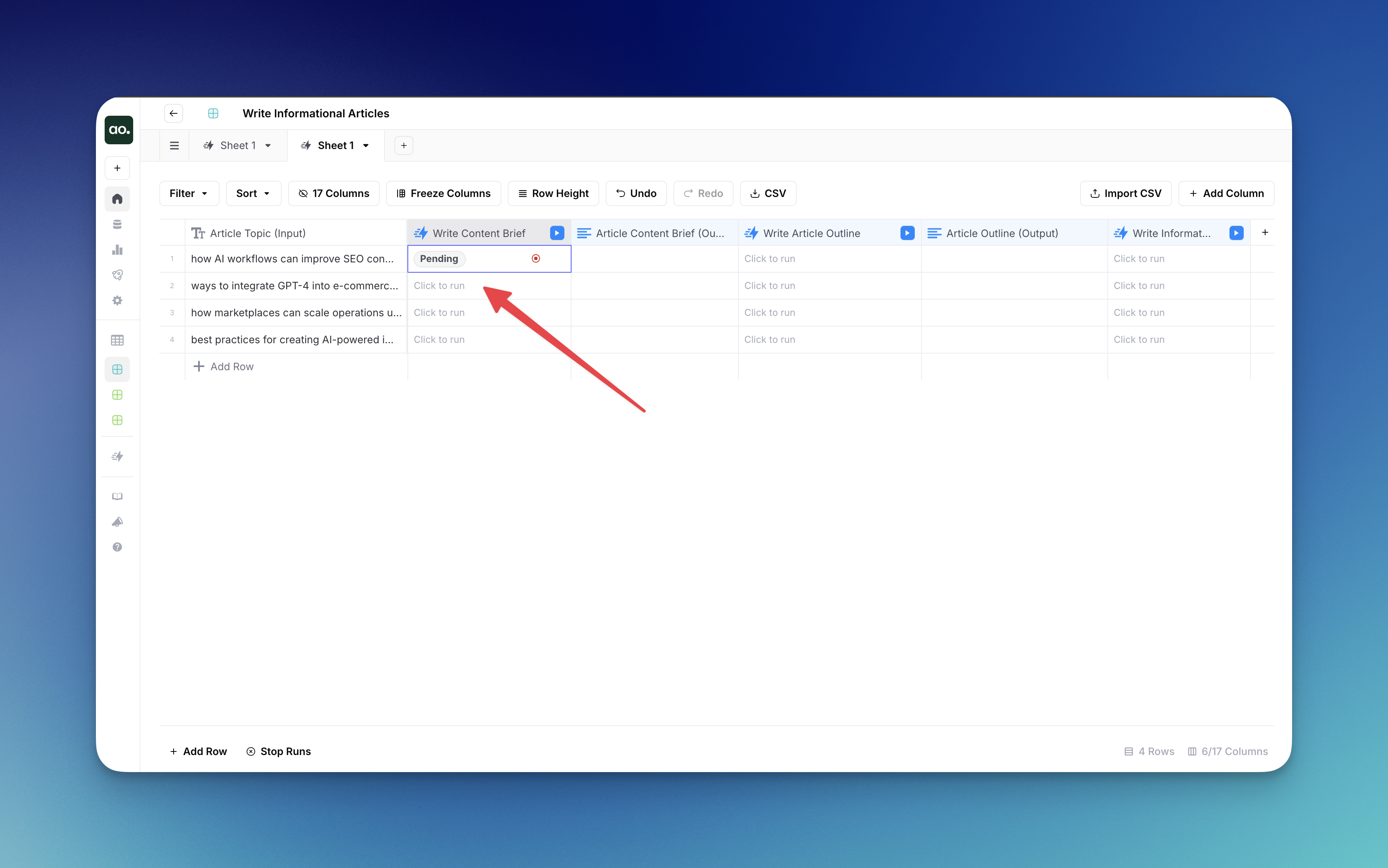
1. **Run for a single row**:
* Click the **Play button** in the workflow column for the specific row you want to process
* The cell will first display "Pending" status while the workflow initializes
* As the workflow progresses, it will show the names of individual steps currently executing
* Wait for the workflow to complete its run
2. **Run for multiple rows**:
* Click the **Play button** in the workflow column header (top of the column)
* A dropdown menu will appear with several options:
* **All Rows**: Process every row in the grid
* **Remaining Rows**: Process all rows that haven't been run yet
* **First 10 Rows**: Process only the first ten rows
* **Rows with Errors**: Retry only the rows that previously encountered errors
3. **Status indicators**:
* **Pending**: The workflow has been triggered and is waiting to begin
* **Step names**: Shows which step in the workflow is currently running
* **Success**: The workflow completed successfully
* **Error**: An error occurred that halted the workflow
* **Review Needed**: The workflow has paused at a Human Review step and requires your input before continuing
4. **Stop running workflows**:
* To stop a workflow that's currently running, click either the **Stop** **icon** in the cell or the **Stop Runs** button at the bottom of the grid
5. **Continue after Review Needed**:
* When a workflow reaches a human review step, click the cell to open the review interface
* Make your selection or edit the content as needed
* Submit your review to allow the workflow to continue processing
6. **Cancel a Human Review**:
* If you no longer want a row's review to continue, open the review panel from the **Review Needed** cell and choose **Cancel review** instead of submitting.
* Canceling stops the workflow run for that row and marks the cell as cancelled, the same as stopping any other in-progress run. The row is eligible to be re-run from the play button.
* Cancel only affects the row whose review you opened. Other rows in the same Run All / Remaining Rows batch keep running.
*
By using these workflow execution features, you can automate content creation and optimization across your entire grid, saving time while maintaining control of the results.
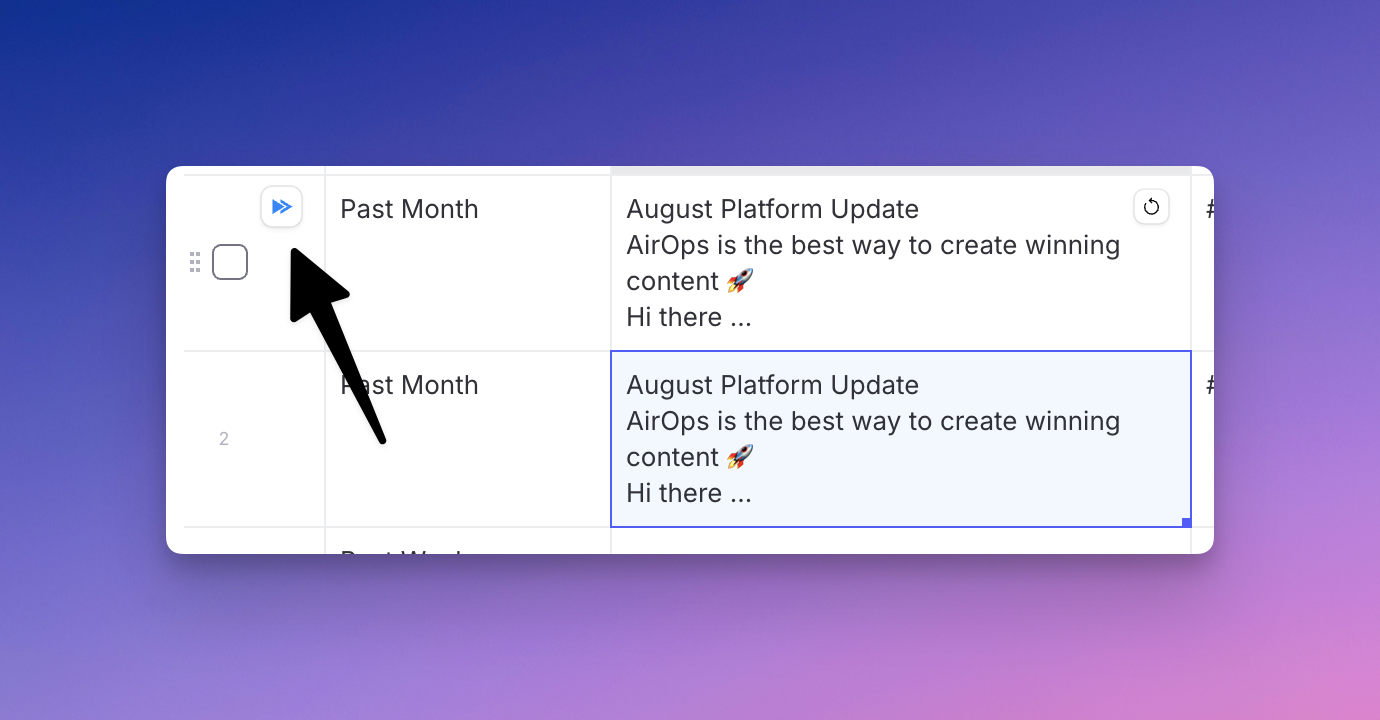
### Run All Workflows in a Row
You can run all the workflows in a given row by clicking the play button on the left of the row. This feature allows you to process multiple workflow steps across an entire row at once, rather than running each workflow column individually.
---
# Agent Instructions
This documentation is published with GitBook. GitBook is the documentation platform designed so that both humans and AI agents can read, navigate, and reason over technical content effectively. Learn more at gitbook.com.
## Querying This Documentation
If you need additional information that is not directly available in this page, you can query the documentation by asking a question.
Perform an HTTP GET request on the following URL with the `ask` and `goal` query parameters:
```
GET https://docs.airops.com/actions/grids/run-workflows-in-grid/run-workflow-column.md?ask=&goal=
```
`ask` is the immediate question: it should be specific, self-contained, and written in natural language.
`goal` is what the user is ultimately trying to achieve, the reason they need the answer. Sharing it helps GitBook give you a better, more relevant answer. A goal is most helpful when it describes the outcome the user wants rather than restating the question. For example, with `ask=how do I create an API token`, a goal like `automate deployments from our CI pipeline` lets GitBook tailor the answer to that use case.
The response will contain a direct answer to the question and relevant excerpts and sources from the documentation.
Use this mechanism when the answer is not explicitly present in the current page, you need clarification or additional context, or you want to retrieve related documentation sections.