> For the complete documentation index, see [llms.txt](https://docs.airops.com/llms.txt). Markdown versions of documentation pages are available by appending `.md` to page URLs; this page is available as [Markdown](https://docs.airops.com/actions/grids/review-content-in-the-grid/review-markdown-content.md).
# Review Markdown Content
## Review Markdown Content in Grid
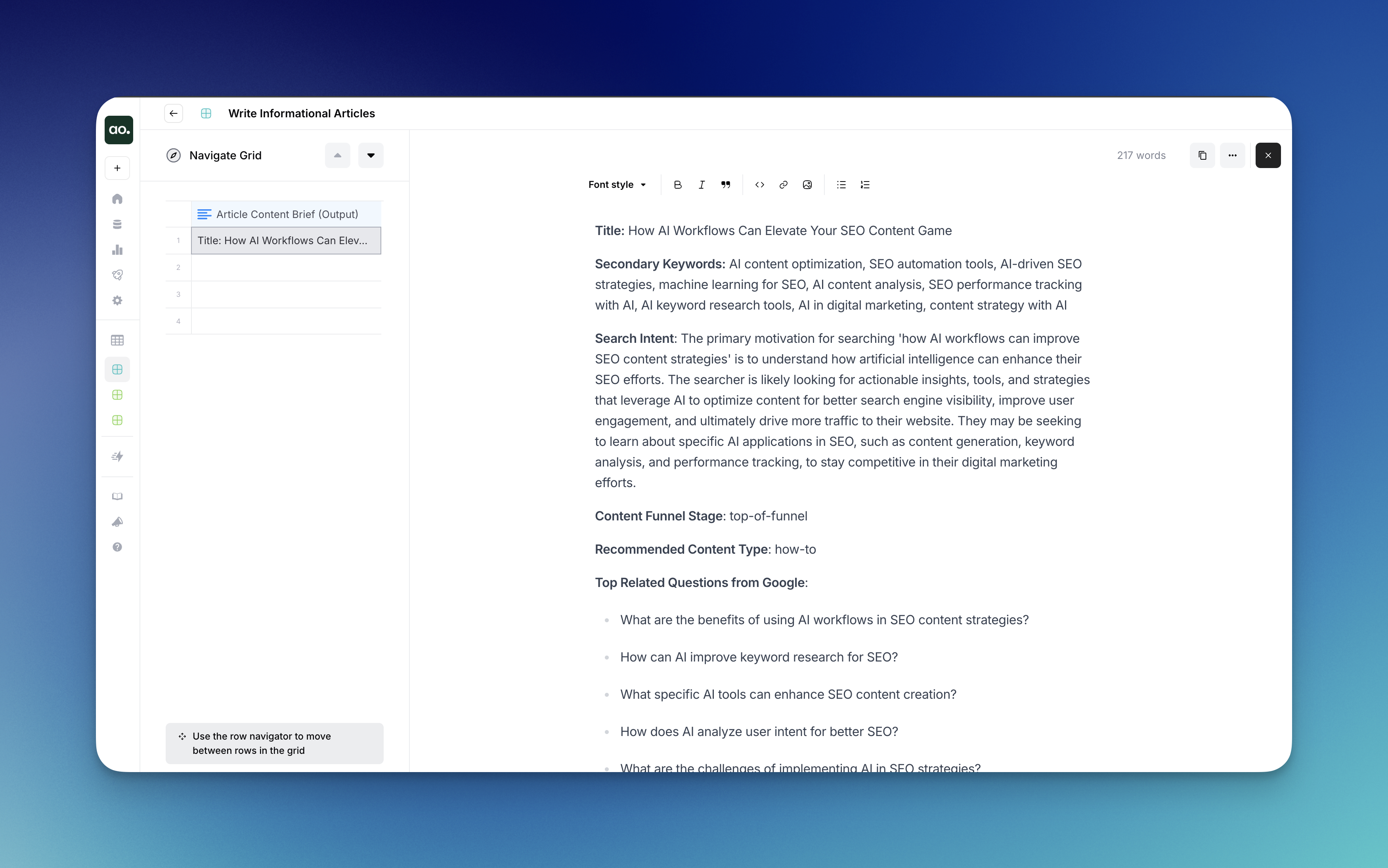
AirOps Grid allows you to view and edit markdown content directly within the interface, providing a convenient way to work with formatted text without leaving the Grid.
### How to Open the Markdown Editor
1. **Set column to "Markdown" format**: Make sure the column in the grid is set to markdown format
2. **Hover over any cell**: Hover over any cell in the markdown column
3. **Click the expand button**: Click the expand button on the cell to open the Editor interface
### Working in the Markdown Editor
Once you've opened the Editor, you can:
* **View formatted content**: See how your markdown will render with proper formatting
* **Make edits**: Modify text directly within the Editor interface
* **Use formatting controls**: Access text formatting options from the toolbar at the top, including:
* Bold, italic, and quote formatting
* Code blocks
* Links and images
* Bulleted and numbered lists
* **Track word count**: The Editor displays the current word count in the top-right corner
* **Copy content**: Use the copy button to quickly copy all content to your clipboard
* **Close editor**: Click the "X" in the top-right corner when finished
### Edit with AI
The Grid editor includes an AI-powered editing assistant that helps you quickly improve and refine your content using different AI models and brand kits.
{% @arcade/embed url="" flowId="3YQLLvwYEYbktq0Dm08e" %}
#### How to Use Edit with AI
1. **Highlight text**: Select the text you want to edit by clicking and dragging to highlight it (highlighted text appears in blue)
2. **Access AI options**: Once text is highlighted, the "Edit with AI" menu appears automatically
3. **Choose your approach**:
* **Select an AI model**: Choose between available models like Claude Sonnet
* **Apply brand kit**: Choose a brand kit to ensure edits maintain your brand voice
4. **Use quick shortcuts**: Access common editing actions from the Shortcuts dropdown:
* **Add more detail**: Expand and elaborate on your content
* **Correct grammar**: Fix grammatical errors and improve sentence structure
* **Make more concise**: Tighten and streamline your content
5. **Custom instructions**: Type specific editing instructions in the text field for more tailored improvements
### Real-time Collaboration
The Markdown editor supports full real-time collaboration features (available for Enterprise customers):
* **Comments**: Add, reply to, and edit comments directly in your content
* **Suggestion Mode**: Propose edits without changing the original content, similar to Google Docs' "Suggesting" mode
* **Version History**: Track changes and roll back to previous versions
* **Live Presence**: See who else is viewing or editing the same content in real-time
For more details on collaboration features, see [Real-time Collaboration](https://github.com/airopshq/airops-docs/blob/main/grids/review-content-in-the-grid/collaboration.md).
The in-Grid editor with AI assistance makes it simple to review, refine, and improve your markdown content while maintaining the context of your overall dataset.
---
# Agent Instructions
This documentation is published with GitBook. GitBook is the documentation platform designed so that both humans and AI agents can read, navigate, and reason over technical content effectively. Learn more at gitbook.com.
## Querying This Documentation
If you need additional information that is not directly available in this page, you can query the documentation by asking a question.
Perform an HTTP GET request on the following URL with the `ask` and `goal` query parameters:
```
GET https://docs.airops.com/actions/grids/review-content-in-the-grid/review-markdown-content.md?ask=&goal=
```
`ask` is the immediate question: it should be specific, self-contained, and written in natural language.
`goal` is what the user is ultimately trying to achieve, the reason they need the answer. Sharing it helps GitBook give you a better, more relevant answer. A goal is most helpful when it describes the outcome the user wants rather than restating the question. For example, with `ask=how do I create an API token`, a goal like `automate deployments from our CI pipeline` lets GitBook tailor the answer to that use case.
The response will contain a direct answer to the question and relevant excerpts and sources from the documentation.
Use this mechanism when the answer is not explicitly present in the current page, you need clarification or additional context, or you want to retrieve related documentation sections.